Salesforce Lead Generation: Turn Website Enquiries into Usable CRM Leads
A prospect fills in your quote form on a Tuesday afternoon. The page thanks them and promises a reply. Marketing counts a conversion, and sales assumes someone will be assigned. If that enquiry never becomes a Lead in Salesforce, nobody waits for it. The prospect hears nothing, and the gap may only show up weeks later, when someone asks why the pipeline looks thin next to the campaign results.
Salesforce lead generation is usually discussed as demand: ads, content, events and outreach. This article covers the step straight after it, for sales, marketing and business leaders who pay for enquiries: making sure each one becomes a Salesforce Lead a seller can act on.
How Salesforce supports lead generation, and where its role ends
For this website-capture workflow, Salesforce's role starts when an enquiry needs to become a record: a Lead with an owner, a source, contact details and enough context for someone to follow up.
There are three common ways a website enquiry gets there:
- Native Web-to-Lead. Salesforce generates HTML form code that you place on your own site, and accepted submissions can create Leads within the documented limits. It's available in Essentials, Group, Professional, Enterprise, Performance, Unlimited and Developer editions, and an admin needs the Customize Application permission to set it up (Salesforce Help: Generate Leads from Your Website with Web-to-Lead).
- A connected form builder or marketing platform. Marketing Cloud Account Engagement, HubSpot, Marketo, Jotform and similar tools capture the submission first, then create or sync the Salesforce record under their own rules. Account Engagement, for example, uses form handlers so you can keep a custom or third-party form and still track submissions (Account Engagement Form Handler object).
- A custom integration. Your site or middleware calls the Salesforce API directly. When a create request fails, the API sends back error details to the calling system (REST API: Create a Record). Whether anyone ever sees those errors depends on how the integration was built.
What happens after the Lead exists is a different problem. Ownership and speed are covered in Salesforce lead routing. Prioritization is covered in Salesforce lead scoring, and channel credit in lead source tracking. None of those can help with an enquiry that never became a record.
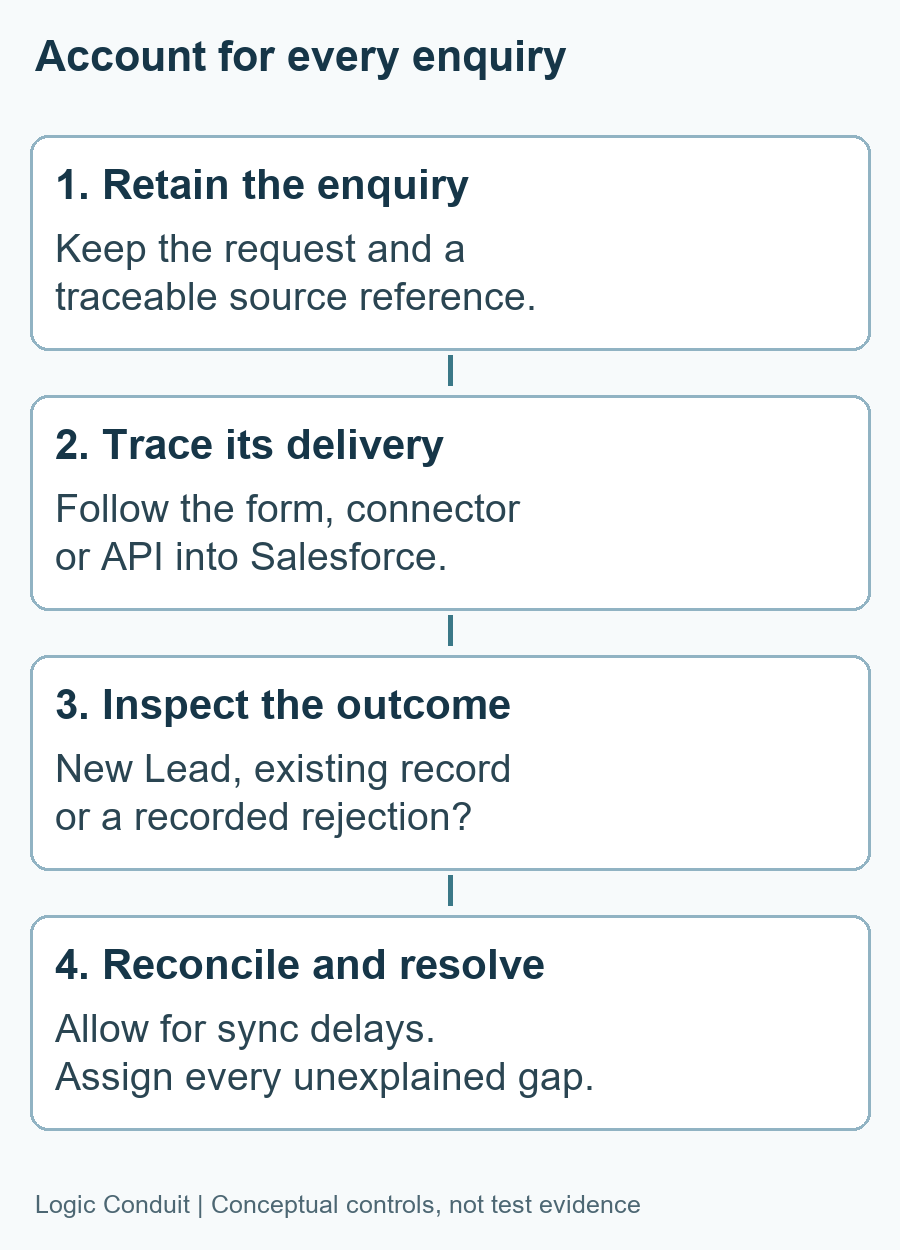
Conceptual diagram: the capture path this article focuses on. Your own tools and settings decide which of these checks apply. Select any image in this article to inspect it at full size.
Choosing between Web-to-Lead, a connected tool and a custom integration
The right route depends on volume, how many sources you have, and how much checking or enrichment an enquiry needs before it lands:
Native Web-to-Lead
- Form ownership: your web team maintains the generated HTML on your website.
- Volume: Salesforce documents 500 requests per day and an email to the Default Lead Creator if that limit is exceeded. Salesforce considerations.
- Failure visibility: Salesforce documents a failure email for record errors; setup errors can be reported to Salesforce Support. Assign someone to review exceptions.
- Support: keep the form requirements aligned with the Lead's fields and rules.
Connected form or marketing platform
- Form ownership: usually managed in the connected tool.
- Volume and recovery: check the tool's plan, sync settings and replay options.
- Failure visibility: confirm where it retains submissions and errors, and who monitors them.
- Support: include field mappings, the connection user's access and authentication in the support plan. These capabilities vary by product and were not tested here.
Custom integration
A custom integration makes sense when you're combining several sources, need to enrich or deduplicate before creating the record, or need retries and alerts you control. It costs more to build and needs an owner. If one website form works through Web-to-Lead and someone watches the exceptions, that's often enough.
Why a thank-you page doesn't prove a Lead exists
What the visitor sees and what Salesforce keeps are separate results. Salesforce documents several reasons a submission may not create a Lead:
- Validation rules run first. Salesforce runs field validation rules before creating a Web-to-Lead record. If any value fails, no Lead is created (Considerations for Generating Leads).
- Required fields must have values. A field made universally required for internal data entry can reject web enquiries that don't include it.
- Duplicate and unique-field rules can block creation. Salesforce's article on the "Salesforce could not create this Lead" email lists blocking duplicate rules, unique fields, missing Country values when state and country picklists are enabled, a disabled Web-to-Lead setting, and Apex triggers that convert Leads on insert (Salesforce Help: Error 'Salesforce Could Not Create This Lead').
That article says the failure email goes to the Default Lead Creator and cannot be customized. Treat it as a useful alert, with a named owner and a process for recovering genuine enquiries. Compare the source submissions with Salesforce outcomes rather than relying only on an inbox.
A small Web-to-Lead example: a stored Lead and a rejected enquiry
The October 26, 2026 example uses two fictional quote enquiries for a cold-storage business. Enquiry A includes a phone number; Enquiry B leaves it blank. The retained Salesforce record and failure email let us distinguish a stored enquiry from a rejected one.
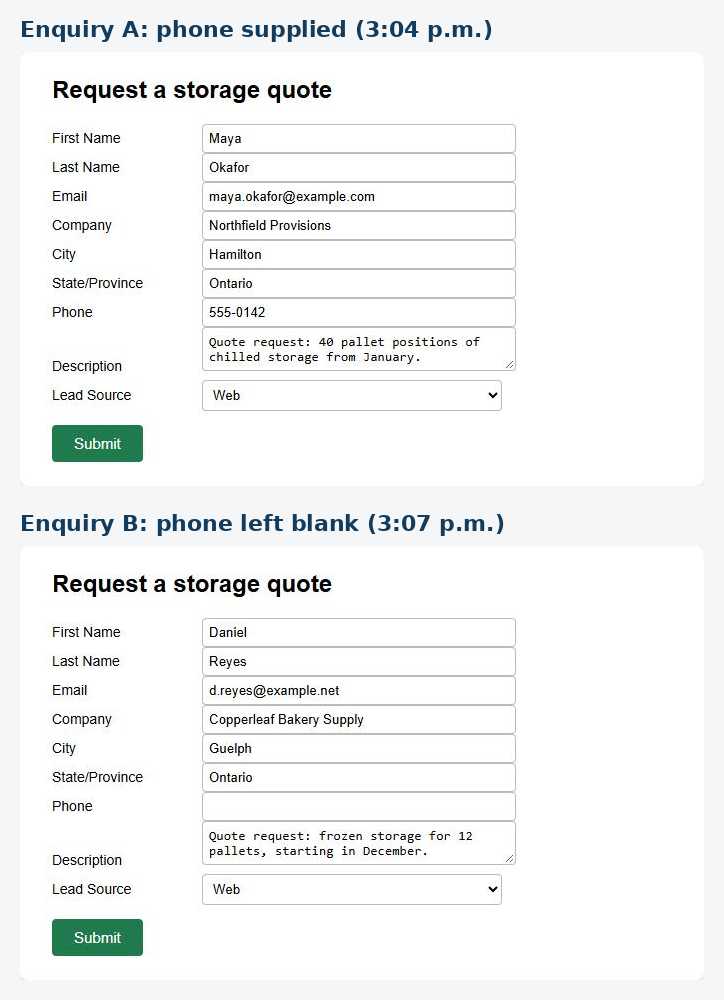
Two supplied form captures, stacked for comparison. Both show Lead Source set to Web; Enquiry B has no phone number.
The form's configured return URL is visible in the retained failure email. That setting does not establish what either browser displayed after submission; no return-page capture is retained.
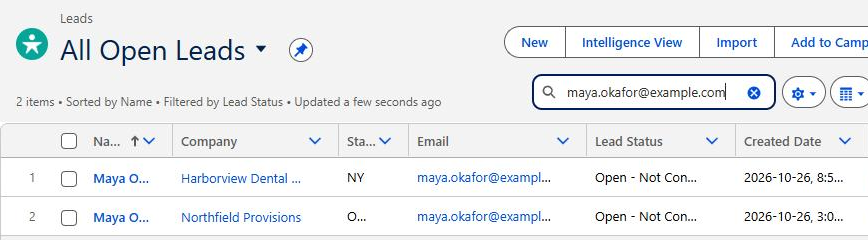
The All Open Leads search shows two records for Enquiry A's email, including Northfield Provisions. This is a filtered list, not an org-wide duplicate audit.
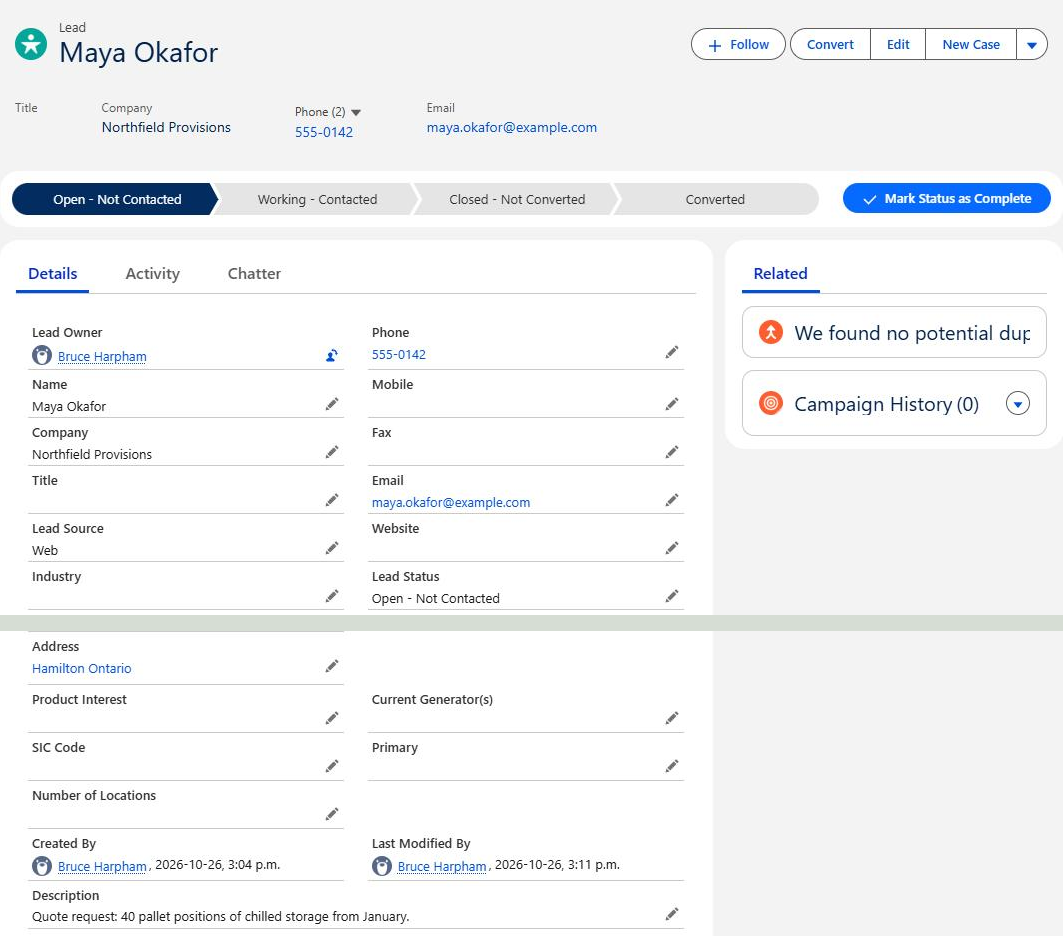
The record screenshot shows the matching phone number, Lead Source, city, province and request details. It was captured after creation, so it does not establish when each field was populated. Two parts of the same record page are joined at the grey line.
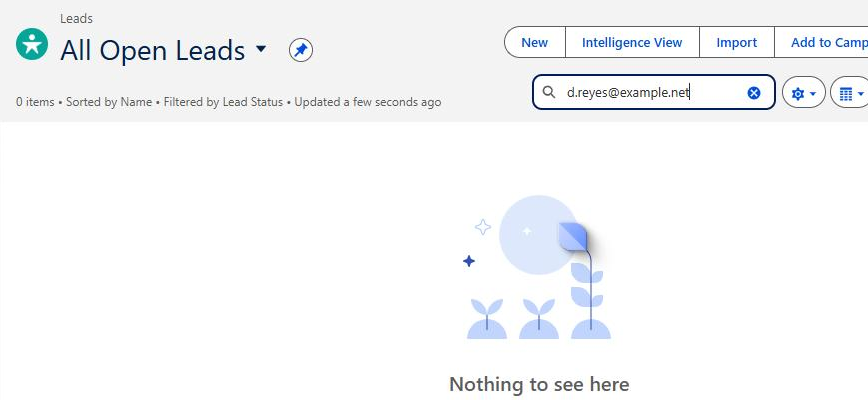
The All Open Leads search returns zero items for Enquiry B's email. That filtered search alone does not establish org-wide absence.
The stronger evidence is the Salesforce failure email dated October 26 at 3:07 p.m. It matches Enquiry B's name, email, company and quote request, shows a blank phone field, and states that Salesforce could not create the Lead. Its reason is:
Please provide a phone number so our team can confirm the quote.
The email establishes that this submission was rejected with a phone-required message. The underlying validation-rule definition is not retained. The original email screenshot is kept privately because it includes org identifiers.
The lesson goes beyond phone numbers: a rule that improves data quality for internal users can turn an incomplete web enquiry into a lost one. You may still want the rule, but then the form should require the same field, or the rejected enquiry needs somewhere to land.
Enquiry A's record page also displays a no-potential-duplicates message, while the list shows two records with the same email. That observation does not establish which duplicate rules were active. Check your org's actual matching and duplicate rules before drawing a conclusion. Salesforce duplicate management covers the tradeoffs between blocking duplicates and letting them through.
Evidence scope: one supplied Web-to-Lead example, two fictional enquiries, record/list screenshots and a matching failure email. Connected tools, reCAPTCHA, daily capacity, recovery and production traffic were not tested here. No browser-return, rule-definition or rule-deactivation receipt is retained.
What to check: fields, rules, spam and limits
An admin can review these without changing anything:
- Required fields and mappings. Compare the fields the form actually sends with every field Salesforce requires on Lead, including fields required by validation rules. For connected tools, check that each mapped picklist value exists and is active in Salesforce.
- Validation rules. Read each Lead rule from the web visitor's point of view. Web-to-Lead forms don't validate email addresses themselves. Salesforce suggests adding an Email validation rule for that (Considerations for Generating Leads). That improves quality, but invalid submissions will then be rejected rather than corrected.
- Duplicate handling. Decide whether a repeat enquiry should be blocked, allowed with an alert, or merged later. Blocking protects data but can stop a returning prospect from getting through.
- Spam controls. reCAPTCHA protects Web-to-Lead and is on by default. Check that it's supported in your region, and decide whether to allow traffic if Google's servers are unavailable (Salesforce Help: Web-to-Lead). If you no longer use Web-to-Lead, review and retire the unused capture path with its owner.
- Limits. Web-to-Lead allows 500 requests per day, and LinkedIn Lead Gen has its own 500-lead limit. Campaign spikes and imports routed through a form endpoint are where these are most likely to be reached.
- Who receives the alerts. The Default Lead Creator needs the Modify All Data, Send Email and Access Activities permissions. Make sure that person, or a shared mailbox rule, actually reads the failure emails.
Run an end-to-end capture audit
A capture audit answers one question: can you account for every genuine enquiry in a set period, whether it created a new Lead or reached an existing record?
- Pick a window. A recent week or month with normal traffic works well.
- Export submissions from the source. Use the form tool, the marketing platform, or your website's own records. If the Leads themselves are your only record of submissions, a rejected enquiry leaves nothing to match against. Consider having the website or form tool keep its own copy.
- Find the Salesforce destinations. Include newly created Leads, converted Leads and existing Leads or Contacts that the capture process deliberately updated or linked to. Use source, campaign and integration records as appropriate; a returning prospect does not always need another Lead.
- Match enquiries to outcomes. Prefer a submission identifier recorded at both ends. Where it is unavailable, use email and time as investigation aids, allowing for repeat enquiries, time-zone differences and the agreed sync delay. Keep pending deliveries separate from unexplained gaps.
- Explain and assign every exception. Separate spam, deliberate existing-record matches, pending deliveries, rejected submissions and unexplained gaps. Inspect failure emails or sync errors for the actual reason. Give each unresolved genuine enquiry an owner, next action and due date; do not count categories twice.
- Check usefulness, not just existence. Confirm that the destination record carries the request details, source, contact fields and follow-up responsibility sellers need, so nobody has to ask the prospect for the same information again.
- Test before changing rules. In a sandbox, submit a valid enquiry and one that breaks a rule. Salesforce's troubleshooting article also suggests temporarily deactivating Lead validation rules and using debug logs for the submitting user (Salesforce Help: Troubleshooting a Non-Functional Web-to-Lead Form). Do that in a sandbox, not production. The generated Web-to-Lead HTML also includes optional debug lines that email you diagnostic details when you submit a test. Retain the valid result, controlled rejection, recovery and configuration-restoration receipts before signing off.
The lead capture audit checklist turns these steps into a worksheet.
When an admin can fix it, and when to review the integration
Many capture problems are admin-sized fixes. Good examples are a form missing a required field, a validation rule that should allow web enquiries, a stale Default Lead Creator, or an inactive picklist value. Once the fix is in, run a test submission and repeat the reconciliation for the following week.
A wider integration review makes sense when:
- Enquiries arrive from several tools, and nobody can say which system is the source of truth.
- Failures appear in tool logs or inboxes that nobody owns.
- Volume is near the daily limit, or leads arrive through imports and automations as well as forms.
- Records need enrichment, deduplication or checks before creation, and those steps currently happen by hand.
- People copy enquiries into Salesforce manually because the automated path isn't trusted.
If enquiries do reach Salesforce but stall after that, see marketing to sales handoff. For how to classify sync failures as retry, fix or escalate, see Salesforce integration error handling.
Bring one missing enquiry to a capture review
If you suspect website enquiries are going missing or arriving incomplete, three things are enough to start: your enquiry form, the tools connected to it, and one example of a lead that went missing or arrived without key details. In a scoped capture and integration review, we'll trace that example through your form, delivery path and Salesforce rules. You'll come away knowing whether an admin fix is enough or the integration needs a closer look.