Salesforce Lead Routing: 7 Mistakes That Let Good Leads Go Cold
Marketing reports a strong month for inbound demand. Sales says the leads were thin. Both teams may be telling the truth, because nobody can say with confidence where every new lead went after it entered Salesforce, who owned it, or how long it waited.
That uncertainty is the real cost of Salesforce lead routing problems. You are paying to generate interest, but you cannot show that qualified prospects reached the right seller in time. When ownership is wrong or invisible, follow-up slows, territory disputes start and pipeline reviews turn into debates about the data instead of the deals.
The good news: most routing failures come from a short list of predictable causes. We reproduced several of them in a Salesforce Developer Edition org, measured the result, then fixed them with native features. The before-and-after numbers are below, along with an audit you can run this month.
Why Salesforce lead routing becomes an expensive problem
Routing looks like a configuration detail, so it rarely gets an owner after go-live. Meanwhile, the business changes around it. New territories are added, a webinar list is imported, a form tool is connected, an enrichment service starts updating records, and a large account segment gets its own team.
Each change is reasonable. Together, they can produce three outcomes a sales leader cares about:
- Good leads reach the wrong team. The seller who receives the lead may not sell that product or cover that region, so the first conversation is a handoff.
- Leads land with a person nobody is watching. Often that is an administrator, an integration user or a default owner. The record exists, but no seller sees it.
- Leads sit in a queue without a clock. Ownership is technically correct, yet no one is accountable for picking the lead up.
None of these will appear as an error. Salesforce saved the record exactly as it was configured to. That is why routing problems tend to surface late, usually as a complaint about lead quality.
Seven lead routing mistakes that let good leads go cold
1. Rule entries in the wrong order
Salesforce evaluates assignment rule entries in order and stops at the first match. If a territory entry sits above an enterprise entry, a 4,000-employee company in New York goes to the regional team, because the region matched first.
In our test, three of the four leads from companies with more than 1,000 employees went to territory queues for exactly this reason. The rule was not broken. The order simply encoded a different policy than the business intended. (Our earlier article on lead assignment rules best practices covers how to decide which team wins when criteria overlap.)
2. No catch-all entry for leads that match nothing
When no entry matches, Salesforce does not hold the lead for review. Its documentation says the lead goes to the default Web-to-Lead owner or the administrator doing an import, and it recommends making the last entry one with no criteria.
Without that entry, unmatched leads blend into one person's records. In our "before" run, 9 of 24 leads ended up owned by the org's administrator, mixed in with everything else that person owns. Five of those nine had enough information to route correctly; the rule just did not recognize it.
3. Routing on inconsistent data
Lead assignment rules compare field values. If State is a free-text field, the same place can arrive as "NY", "New York" or "N.Y." depending on the form, the import file or the person typing.
In our test, "ny" in lowercase matched an "NY" entry. "New York", "Massachusetts", "California", "Calif." and "N.Y." did not, so those leads missed their territory. Adding full state names to the rule fixed three of them. "Calif." and "N.Y." still needed a person, which is the practical limit of rules: they can route clean data, but they cannot clean it. Standardizing values at the form, import or integration step (or enabling state and country picklists) addresses the cause. If inconsistent values are widespread, our guide to Salesforce data quality is a sensible next read.
4. Assuming every entry path runs the same rules
This came up more than any other cause in the community threads we reviewed, and the top-ranking guides we read do not explain it. Whether assignment rules run depends on how the lead is created:
- Salesforce documents that lead assignment rules can apply to leads created manually, from Web-to-Lead forms, or through the Data Import Wizard (Salesforce Help).
- For REST API calls, the
Sforce-Auto-Assignheader defaults to TRUE, and an integration can set it to FALSE. - Apex code requests assignment explicitly with DML options.
Real teams run into the gaps. One admin found that leads imported with a browser-based data tool kept the importer as owner while UI-created leads routed correctly (Trailblazer Community, May 2025). Another found that every lead created by a form integration was owned by the integration's admin until they built a Flow to route them (Typeform Community, December 2023). Leads from an Experience Cloud site can land with the guest user's default record owner instead of the active rule (Trailblazer Community).
We tested the API path. Two leads that met East and West criteria were created with the header set to FALSE. Both stayed with the API user instead of reaching a queue.
5. Letting routine updates re-run assignment
The same REST header that applies assignment on creation also applies it on updates. In our test, a lead was moved from the East queue to a seller, as if they had accepted it. A later API update changed only its Rating field, with no assignment header. Salesforce re-ran the active rule and moved the lead back into the East queue.
For a sales manager, that looks like a lead disappearing from a rep's list for no reason. For the rep, it can mean duplicated or abandoned follow-up. Integrations that update leads (enrichment, marketing automation, scoring) should decide deliberately whether assignment runs, and the Do Not Reassign Owner option on rule entries is worth reviewing.
6. Queues with no clock and no owner
A queue is a shared inbox. If no one is responsible for it, and no alert fires when a lead waits too long, correct ownership still produces slow follow-up. Note that a rule entry without an email template sends no notification to the new owner.
Admins have asked how to alert queue members when a lead is still in a queue ten minutes after creation; a suggested approach is a record-triggered Flow with a scheduled path (Trailblazer Community). We did not test queue ageing or alerts in this lab, because all test leads were created minutes apart.
7. No routine check of where leads actually landed
Routing reviews often stop at the rule in Setup instead of the outcome on records. A simple report of recent leads grouped by owner answers the question directly: how many leads went to each team, to each queue, and to people who should not own leads at all. It takes a few minutes to build and a few minutes a week to read.
Salesforce lead routing example: before and after
We created 24 leads in a Salesforce Developer Edition org, each with a known intended owner based on a simple policy:
- Companies with 1,000+ employees go to Enterprise, in any region.
- Northeast states go to East; western states go to West.
- Anything else goes to a Routing Exceptions queue for review.
The leads included clean records, large companies inside both territories, full state names, abbreviations, missing states, and out-of-territory locations. We wrote down the expected owner for every lead before running anything, created the leads through the REST API, then compared actual owners with the expected ones.
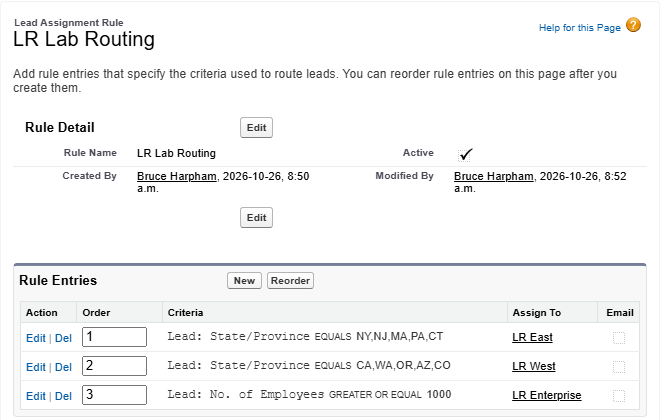
Before: territory entries come first, the Enterprise entry is third, and there is no catch-all entry.
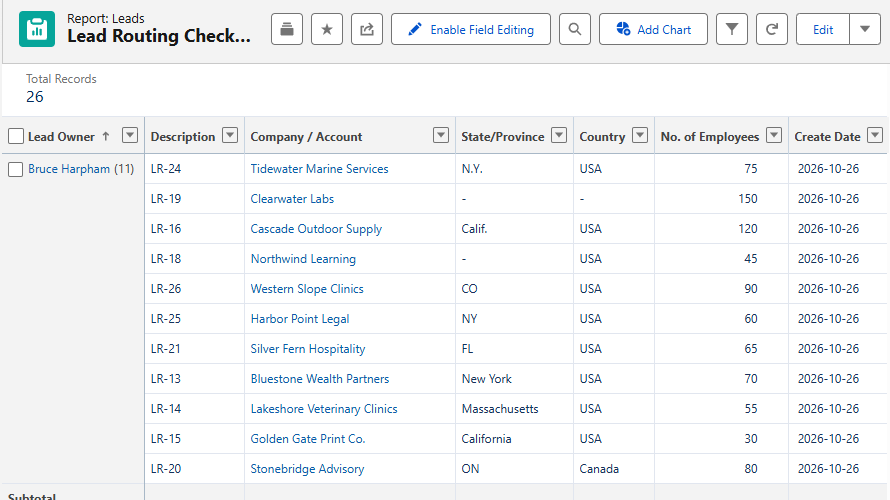
Before: leads the rule did not recognize stayed with the administrator, along with two leads created with assignment turned off.
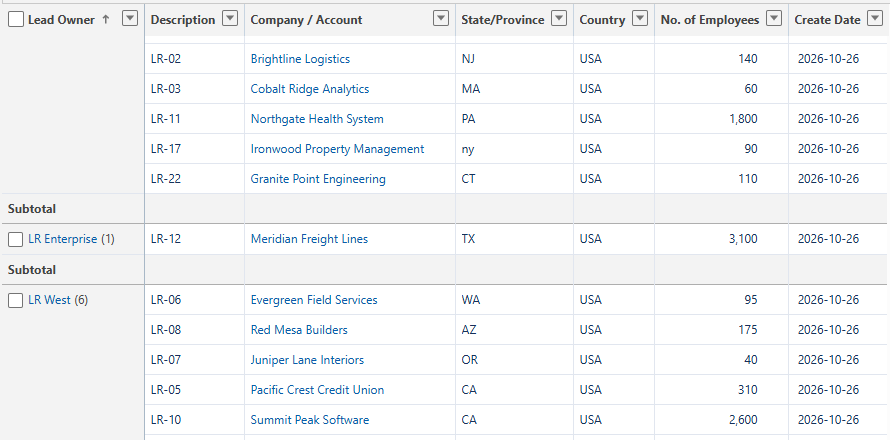
Before: 1,800- and 2,600-employee companies in Pennsylvania and California reached territory queues instead of Enterprise.
We then changed the same rule: Enterprise first, full state names added to both territories, and a final entry with no criteria that sends everything else to Routing Exceptions. We re-ran assignment on the same 24 leads.

After: the revised rule order and a catch-all entry for leads that need review.
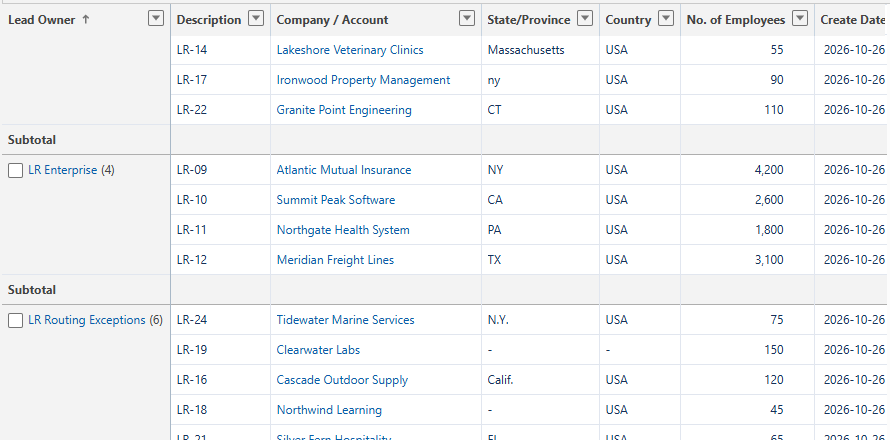
After: all four 1,000+ employee companies reached Enterprise.
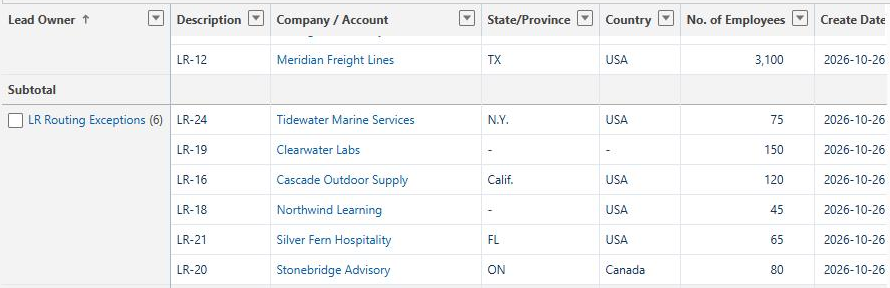
After: six leads are visible in one review queue instead of mixed into a person's records.
| Measure (24 leads) | Before | After |
|---|---|---|
| Reached the intended owner | 12 | 22 |
| Reached the wrong team | 3 | 0 |
| Left with the administrator (no rule matched) | 9 | 0 |
| Visible in the Routing Exceptions queue | 0 | 6 |
The two leads that still miss their territory ("Calif." and "N.Y.") are now easy to see and fix. The other four in the exceptions queue (missing state, Canada, Florida) are leads the policy says a person should review.
What this does and does not show:
- Every result matched the prediction we wrote down before the run. The results describe this org, this rule and the REST API path. We did not test Web-to-Lead, imports or Flow in this lab.
- The "after" run re-applied the rule to existing leads by updating them, which is the same behavior shown in mistake 5.
- In this org, the default lead owner and the API user were the same person, so the test cannot tell those two fallbacks apart.
- Correct ownership is a prerequisite for timely follow-up, not proof of it. We did not measure response times, conversion or revenue.
How to audit your Salesforce lead routing this month
You do not need a project to get a clear picture. Set aside an hour with your Salesforce admin and work through these steps:
- Write the policy in plain language. Which team owns which leads, and who wins when criteria overlap? If the answer is "it depends", that is the first finding.
- Compare the policy with the active rule's entry order. Look for broad entries above narrow ones.
- Check for a final catch-all entry and confirm a named person reviews where it sends leads.
- List every lead source: web forms, imports, marketing automation, form tools, enrichment, partner portals. For each, find out whether assignment rules run on create and on update.
- Pull last month's leads grouped by owner. Flag leads owned by administrators, integration users or former employees.
- Check the values in your routing fields. Group leads by State, Country or whichever field drives routing and look for variants.
- Look at queue age. How many leads in each queue are older than your target response time, and who is accountable?
- Record the current rule before changing it, so you can roll back.
A printable version is attached as the lead routing audit checklist.
When to fix lead routing internally, and when to hire a consultant
Many routing problems are small. If the audit finds a wrong entry order, a missing catch-all, or a handful of state variants, an experienced admin can often fix it in an afternoon, test it with a few records and move on. That is the right call.
Outside help earns its cost when the problem crosses systems or teams:
- Leads arrive through several integrations, and nobody can say which ones run assignment on create or update.
- Ownership changes unexpectedly after enrichment, scoring or marketing automation updates.
- Routing depends on account matching, product lines or capacity, and the rule has grown into dozens of entries nobody wants to touch.
- Sales and marketing disagree about lead volume, and you need numbers both teams accept.
- You are deciding whether native Salesforce is enough or whether to buy a routing tool, and you want a vendor-neutral view first.
In those cases the work is part diagnosis, part design and part testing across entry paths, which is where a structured review followed by a scoped remediation project makes sense. Not every routing issue needs one.
Get your Salesforce lead routing under control
If you cannot say with confidence where last month's leads went, Logic Conduit can help you find out. Send us your active assignment rule (a screenshot is fine), a list of the ways leads enter Salesforce, and one lead that ended up in the wrong place. We will tell you whether it looks like a quick configuration fix or a broader routing and integration issue, and what testing it would take to be sure.