One Customer or Two? Why Duplicate Accounts Slip Into Salesforce and How to Stop Them
It usually starts with something ordinary. Over a few months, different people add the same customer to Salesforce: a rep after a trade show, a coordinator setting up an order, someone in support logging a call. Each one types the company name, skips the address because they're busy, and saves. Nobody gets a warning.
Now one customer has two Accounts. The open deal sits on one. The support cases sit on the other. The next person who calls that customer sees only half the story, and may ask questions the customer has already answered or miss an issue that is still open. Eventually someone has to stop their own work, figure out which record is right and move the history across. Then it happens again.
The surprising part is that this can happen with duplicate rules switched on. Salesforce's standard Account matching rule needs more than a company name to recognize a duplicate, such as a city, postal code or phone number. When those are left blank, an identical name can go straight through. Closing that gap is a native setting change, with no paid app or custom code.
Below, we reproduce the problem in a fictional Salesforce org, apply the fix Salesforce documents, and walk through the decision that matters most afterwards: whether a possible match should warn your team or stop them.
The symptom: duplicate rules are active, but same-name Accounts still save
Other administrators have described the same puzzle. In one r/salesforce discussion, an administrator at a company new to Salesforce described a small database where the standard rules were activated, yet Accounts with the same name could be created "with no alert at all." Replies pointed to the difference between what a rule matches on and what it does when it finds a match. The thread doesn't show a confirmed repair, and one post proves nothing about how often this happens. It is still a useful description of what the problem looks like from the administrator's chair.
Left alone, the cleanup can grow large. Another administrator described inheriting more than 15,000 duplicate Contacts and Accounts with no budget for a paid deduplication tool. A native rule change won't clear a backlog like that, but it can help stop the next easy duplicate from being added to it.
What the standard Account matching rule actually needs
A duplicate rule has two parts. The matching rule decides which existing records count as possible duplicates. The duplicate rule decides what happens next: allow the save, show an alert, report it or block it.
Salesforce's Standard Account Matching Rule is designed to compare a company name together with other details. Its documented matching equation pairs Account Name with Billing Street, with City and State, with ZIP or with Phone, or uses Website with Phone or Street. Salesforce says accurate matches require an Account Name plus a City or ZIP value.
A Salesforce support article published on October 9, 2026, Standard Duplicate Rule Doesn't Catch Duplicate Accounts with the Same Account Name, states the consequence directly: when an Account has only a name, the standard rule doesn't reliably match it to an existing Account with the same name. Its documented remedy is a custom matching rule that compares Account Name using the Exact method.
That distinction matters for the fix. Changing a duplicate rule from Allow to Block cannot catch a record that the matching rule never identified as a candidate.
A small baseline: two identical names, no warning
To see the behavior rather than rely on documentation alone, we used a Salesforce Developer Edition Trailhead Playground and a fictional manufacturer, Alder Machine Works. Every test record and rule name began with "LC DR26" so the demonstration could be scoped and identified. No real customer data was used.
We activated the Standard Account Matching Rule (it was inactive in this playground) and created a demonstration duplicate rule that used it. The rule was set to Allow, Alert and Report on create, and limited to Account names beginning with the test prefix.
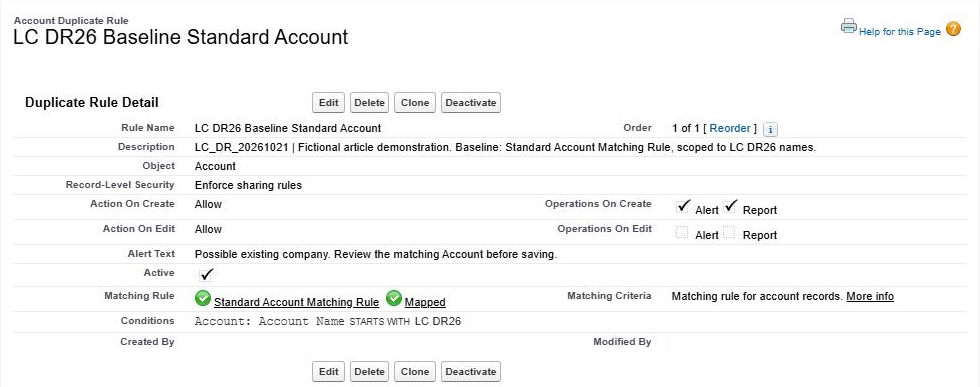
Baseline: an active, demonstration-only Account duplicate rule using the Standard Account Matching Rule.
We then created "LC DR26 Alder Machine Works" with only the name filled in, and created it a second time with the same sparse details. Neither save showed a duplicate alert, and each new record page reported that no potential duplicates were found.

Both same-name Accounts saved under the baseline rule. Billing location and phone were left blank.
This is consistent with the documented behavior. It reproduces one narrow condition, name-only records, in one playground. It doesn't show what would happen with fuller addresses, imports or integrations.
The native fix: match on Account Name, then decide the response
Next, we created a custom Account matching rule with one criterion: Account Name, Exact, without matching blank fields. Activation was not instant; Salesforce confirmed it would notify us by email when the rule was ready, which matches its documentation. We then deactivated the baseline duplicate rule and connected the new matching rule to a second demonstration rule with the same Allow, Alert and Report settings and the same test-prefix condition.
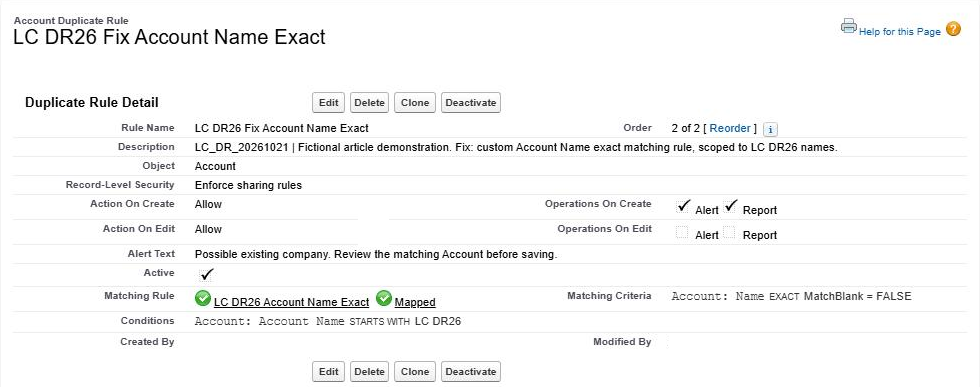
The repaired rule uses a custom matching rule that compares Account Name exactly.
One difference is worth noting. Salesforce's support article suggests adding the custom matching rule to your existing Account duplicate rule. We used a separate, condition-limited rule so the before-and-after comparison stayed isolated in a shared playground. In a real org, choose the approach that fits your existing rule order and ownership.
On the third attempt to create the same name, Salesforce showed "Similar Records Exist" before the save completed.
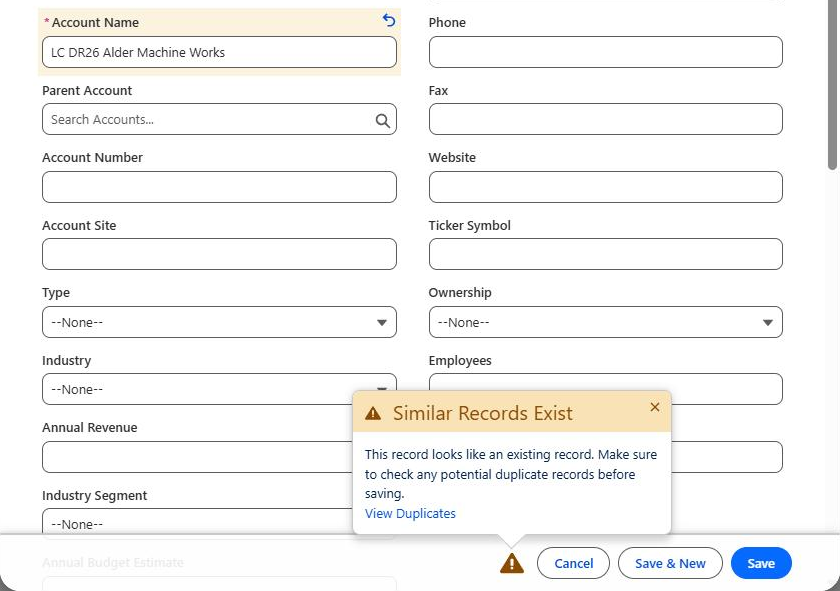
After the change, the same name-only entry produced a duplicate alert.
Opening View Duplicates listed both existing Alder Machine Works records as candidates. We cancelled that attempt.
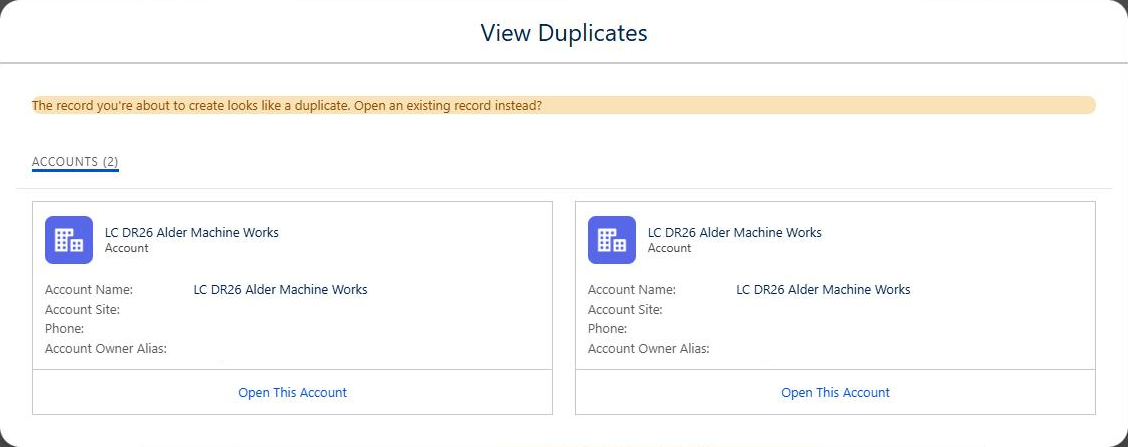
The alert pointed the user to the existing records instead of leaving them to search again.
This repaired detection. It didn't merge anything, clean up the two earlier records or guarantee that every duplicate would be prevented.
Allow, Alert, Report or Block: different outcomes for different risks
Once same-name Accounts are detected, the more important management question is how strongly to respond. We ran three controls.
A different name should still save. "LC DR26 Birchline Fabrication" saved without an alert.
The same name may belong to a separate business. We entered "LC DR26 Alder Machine Works" again with a different Billing City, Hamilton, and treated it as a distinct business for this test. The exact-name rule still flagged it.
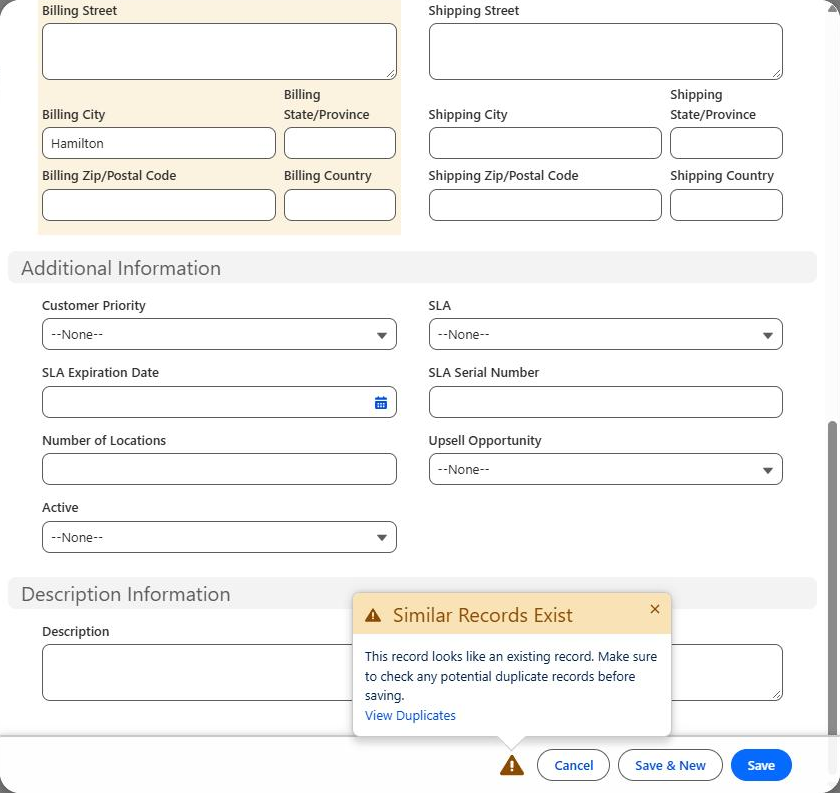
An exact-name rule flags matching names even when the location differs. That is useful for review, but it can create false positives.
Block changes the outcome, not the match. We temporarily changed the repaired rule to Block on create and retried the original sparse entry. Salesforce stopped the save and explained that a duplicate record already exists. The filtered list still showed the same three test Accounts afterward.
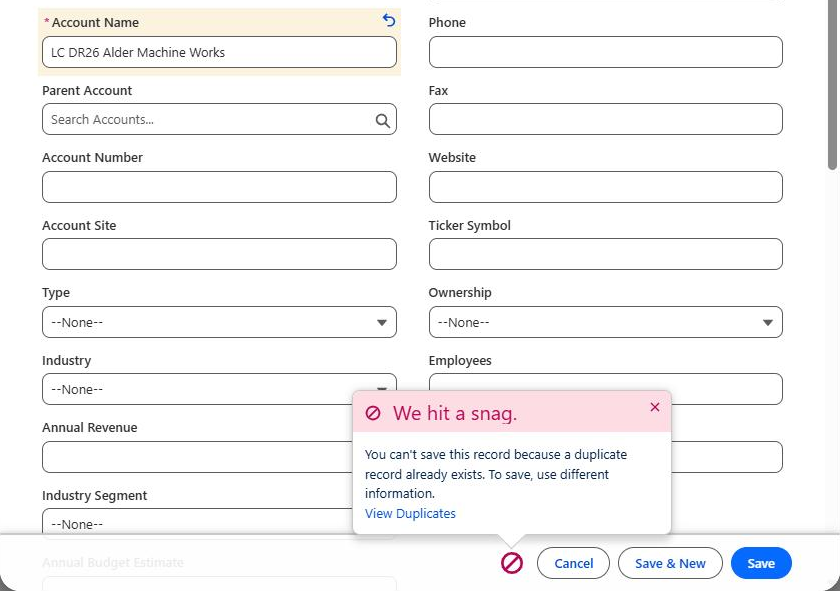
With Block enabled, the same-name Account could not be saved.
Blocking every shared company name would also have stopped the Hamilton record, which we were treating as legitimate. For most business Accounts, a name-only match is better treated as a prompt to check, not proof of a duplicate. Block is easier to justify when the matching evidence is stronger, such as a confirmed external identifier, and when everyone affected agrees on what happens next.
Concerns about tightening controls are reasonable. One administrator asked in the Trailblazer Community whether blocking duplicates created by automated processes might stop Cases or calls from being created. That was a concern raised before making the change, not a reported failure, but it is the right question to ask. Our test only checked manual creation of business Accounts.
We then restored the repaired rule to Allow with Alert and Report and saved the Hamilton record through the alert. Its record page showed two potential duplicates. Salesforce documents that rules can report duplicates; we did not inspect the resulting duplicate report in this playground, so that part remains unverified here.
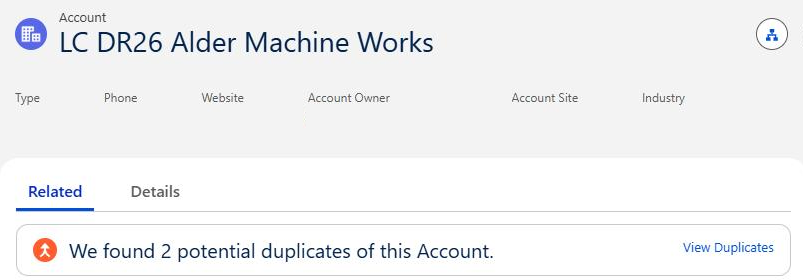
An allowed save with the alert kept the possible duplicates visible for later review.
If you are deciding the broader policy, see how to choose when duplicate rules should warn or block.
A short diagnostic for same-name Accounts
Before changing a rule, check these points in a sandbox or other non-production environment:
- Object and record type. Confirm the records are business Accounts and the rule is for Accounts. Person Accounts use separate rules.
- Entry path. Note whether the duplicate came from manual creation, an edit, an import or an integration. Test that path rather than assuming it behaves like the UI.
- Data present at save. If City, ZIP, Phone or Website are commonly blank, the standard Account rule may not have enough to compare.
- Active matching rule. Confirm which matching rule the duplicate rule uses and that it is active.
- Conditions and order. Check rule conditions, and remember that Salesforce documents that the first rule that finds a match causes later rules to skip that record.
- Sharing. Users may not see duplicates they don't have access to.
- Actual outcome. Record whether the save was allowed, alerted, reported or blocked. A configuration screen alone doesn't prove the save behavior.
The companion checklist below turns these into a short test record.
What this does not fix
This demonstration addresses one narrow problem: missing detection for manually created, name-only business Accounts. It doesn't remove an existing backlog, explain inconsistent Person Account or API results, or decide what an integration should do when Salesforce rejects a record. For example, one practitioner described different Person Account outcomes between API and manual creation, without a confirmed cause. That needs its own investigation.
If duplicates keep returning from another system, review the process creating duplicates across systems and diagnose the integration error before retrying. If cleanup has become routine work, it helps to measure the data-quality work that keeps returning.
We did not test record edits, imports, API requests, Flow updates or larger data volumes. An exact-name rule is deliberately simple. Before relying on it, decide who reviews alerts, what counts as the same company and whether the warning will appear in the places your team creates Accounts.
When the same Accounts keep coming back
A good duplicate rule doesn't need to be clever. It needs to match the evidence your team actually has when records are created, and respond in a way sellers and service staff can work with.
If your team keeps cleaning up the same Accounts, tell Logic Conduit where the records originate and what the duplicate rules are missing. A list of the active Account matching and duplicate rules, plus one recent duplicate pair and how each record was created, is enough to start. We can discuss the matching policy, the handoff and the evidence needed to verify a focused repair.