“An Unhandled Fault Has Occurred in This Flow”: How to Find and Fix the Salesforce Error
A sales rep calls you at 4pm. She has filled in the same form three times and Salesforce keeps refusing to save the deal. The message on her screen says this:
An unhandled fault has occurred in this flow An unhandled fault has occurred while processing the flow. Please contact your system administrator for more information.
That is the whole message. No field name, no record, no element, no rule. Salesforce is telling you that something inside an automation failed, and nothing else.
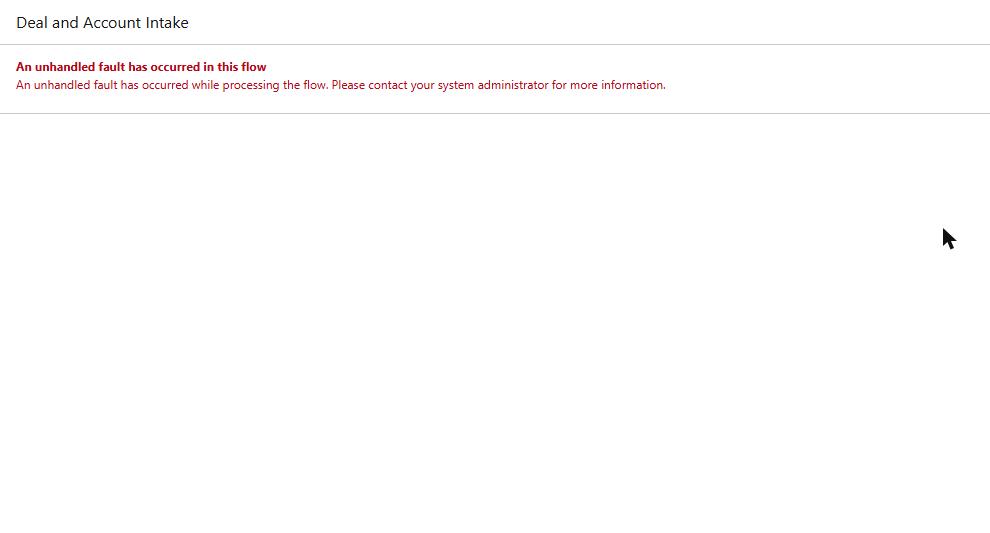
The whole message, as the person running the flow sees it. No element, no field, no rule.
Salesforce knows it reads badly. Its own Trailhead unit on fault paths calls this "the most dreaded error message in flows" and concedes that it confuses the person running the flow with a vague message containing no details or instructions.
The good news is that the detail does exist. It is just not on the screen the rep is looking at. This article walks through how to find it, how to fix it properly, and why the most commonly recommended fix quietly changes what Salesforce does with your data.
What "An Unhandled Fault Has Occurred in This Flow" Actually Means
A flow fails when Salesforce cannot complete a database operation. Salesforce names the usual reasons plainly: a validation rule, or a missing required value, can stop the operation completing.
"Unhandled" is the important word. It does not mean the error is mysterious. It means the element that failed had no fault path attached, so the flow had no instructions about what to do next. Salesforce falls back to a default: it shows the generic message and creates a failed interview.
What the user experiences depends on the flow type. In a screen flow the message appears in place of the next screen, and the person cannot continue or go back — they must start over. In a record-triggered flow it arrives as a "We hit a snag" banner on the record page, naming the process that failed. If a validation rule caused the error in a record-triggered flow, Salesforce shows that rule's message instead of the generic text, which is why some failures are self-explanatory and others are not.
The generic message is a symptom. It tells you an automation stopped. It does not tell you which one, where, or why.
How to Find the Real Cause
Work through this in order. None of it requires Apex.
1. Record the facts while they are fresh. Who hit it, what they were doing, which record, and roughly when. You will need the time to match against the error email and debug logs.
2. Find the flow error email. When a flow run fails, Salesforce sends a detailed email containing the error message, details of each element that ran, and a link that opens the failed flow in Flow Builder. That email is the single most useful artefact you have.
3. If no email arrived, check who it was addressed to. By default it goes to the admin who last modified the flow — not necessarily to you. In Setup, enter Automation in the Quick Find box, select Process Automation Settings, and look at Send Process or Flow Email to. You can switch it from User Who Last Modified the Process or Flow to Apex Exception Email Recipients, which sends to the addresses on the Apex Exception Email page. One caution before you forward anything: Salesforce states that these emails include the data involved in the flow, including data the user typed. Treat them as records, not as chat messages.
4. Identify the flow and version. The email and the failed interview both name them. Check you are looking at the version that is actually active, not the one you last edited.
5. Read the failure details and find the failing element. This is the step that turns a generic message into a specific one. Open the flow and run it in Debug with the same inputs. The debug panel names the element and prints the underlying exception.
6. Inspect the configuration and its dependencies. The flow is rarely the whole story. Check validation rules on the object, field-level security for the running user, and other automation on the same record.
7. Reproduce it with controlled test data, then 8. verify a specific fix — not a plausible one.
Here is why step 5 matters more than it sounds. Building the example for this article, we created a screen flow that collects an opportunity name and a close date, then creates the opportunity. We deliberately left the close date blank, expecting a required-field error. The flow failed as predicted, and the user saw the generic unhandled fault. The debug panel said something else entirely:
This error occurred when the flow tried to create records: FIELD_CUSTOM_VALIDATION_EXCEPTION: Primary Pain Point cannot be blank.
The blank close date was never reached. A validation rule on the Opportunity object — one that had nothing to do with the field we were testing, and that is invisible from inside Flow Builder — rejected the record first. If FIELD_CUSTOM_VALIDATION_EXCEPTION is what your own debug panel shows, that code has a diagnosis path of its own. The obvious hypothesis was wrong, and only the admin-side diagnostic showed why.
That is the normal case, not an unlucky one. One generic message can sit on top of several unrelated causes, stacked.
Six Common Causes
Salesforce documents these as common causes of unhandled faults. This is a list of possibilities, not a ranking of how often each occurs.
| Cause | Symptom | First thing to check | Typical fix |
|---|---|---|---|
| Missing required field | Fails on create, every time, for everyone | Which fields the object requires, including ones absent from the flow | Capture or default the value in the flow |
| Validation rule | Fails for some records, not others | Setup → Object Manager → object → Validation Rules | Satisfy the rule, or add a guard condition before the DML |
| Permissions / field-level security | Works for you, fails for a user or an integration | Field-level security and object access for the running user | Grant access via profile or permission set |
| Missing or unexpected values | Intermittent; fails when a lookup finds nothing | Whether a Get Records returned no record | Handle the empty case explicitly before using the value |
| Related automation conflict | Started after an unrelated change | Other flows, triggers and approval processes on the object | Add a condition, or consolidate the automations |
| Governor limit or Apex error | Fails at volume, fine one record at a time | Whether the failure is tied to batch size | Address the limit, not the symptom. Apex CPU time limit exceeded is the one you will meet most |
Two of these deserve a note, because both appear in Salesforce's own 2026 support articles.
On permissions: five standard lookup fields linking Contracts and Orders with Opportunities shipped with field-level security defaulted to Hidden. Flows respect field-level security, so a flow touching a hidden field throws an unhandled fault — with nothing wrong in the flow at all. The fix is in Setup → Field Accessibility, not in Flow Builder.
On related automation: a record already in an active approval process causes a second automated submission to fail, because a record can be in only one approval process at a time. The flow is not malfunctioning. It is colliding with a business rule that lives somewhere else. The fix there is a condition that checks before submitting — prevention, not error handling.
How to Add a Fault Path
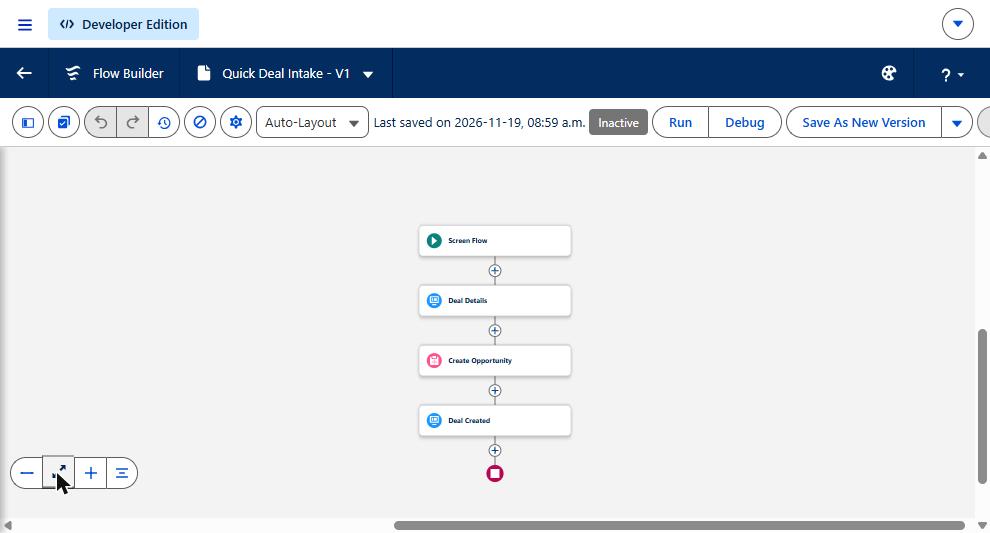
The flow before any error handling: collect details, create the opportunity, confirm. Nothing tells Salesforce what to do if the create fails.
A fault path is a second route out of an element that runs only when that element errors. You can add one to Get Records, Create Records, Update Records, Delete Records and Action elements.
Hover the element, open its menu, choose Add Fault Path, then add elements to the new branch. In a screen flow the usual choice is a Screen that explains what happened. Salesforce's own sample wording for that screen carries no technical detail at all — it says something went wrong and to contact an administrator.
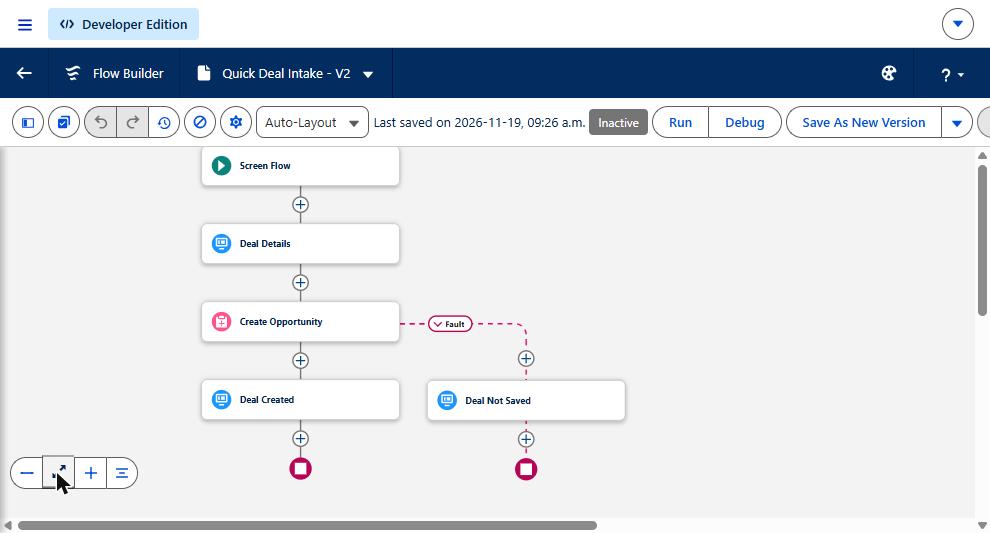
The same flow with a fault path. The dashed branch runs only when Create Opportunity errors.
That restraint is deliberate, and worth keeping. The $Flow.FaultMessage global variable gives you the underlying exception text, which Salesforce describes as "a bit technical." It is a diagnostic tool, not a user message. Putting it on an admin-facing screen or into a log is sensible; putting it in front of a sales rep tells them nothing they can act on and exposes internal configuration. Send the detail to the admin; send plain guidance to the user.
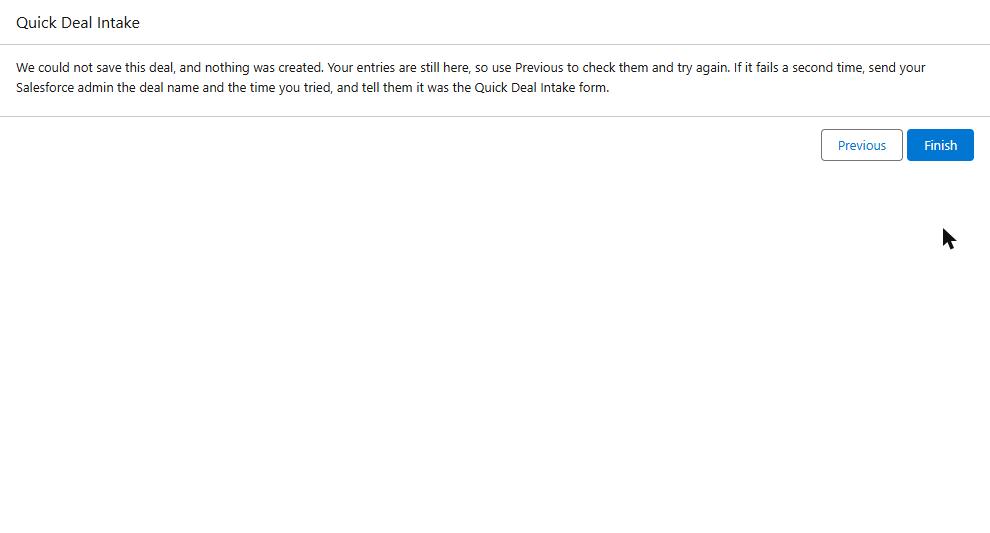
What the fault path shows instead. Plain guidance, no internal error text, and the user can go back.
If many flows need the same fault handling, Salesforce suggests building one autolaunched flow containing the fault-path elements and calling it as a subflow. It is the kind of habit that keeps a growing set of flows maintainable.
Why a Fault Connector Isn't Always Enough
This is the part most articles skip, and it is the part that costs money.
Adding a fault path does not just change the message. It changes what Salesforce does with the transaction.
By default, a flow that fails partway through rolls back every database change in that transaction. The partial work is undone. But once an error is routed down a fault path, that protection is switched off, and the changes made before the failure stay committed.
Here is Salesforce's documented behaviour by flow type, where the fault path contains a record operation:
| Flow type | No fault path | With a fault path |
|---|---|---|
| Record-triggered | Blocks the triggering change and rolls back the transaction. A validation-rule error shows that rule's message | Does not block the triggering change. Does not roll back. An error appears only if the path contains an Error element |
| Screen | Shows the unhandled fault and rolls back the transaction | Runs the fault path. Rolls back only if the path contains a Roll Back Records element |
| Autolaunched | Shows the unhandled fault and rolls back the transaction | Runs the fault path, shows a completion message, does not roll back |
We tested this rather than taking it on trust. A screen flow creates an account, then creates an opportunity against it. The opportunity creation is blocked by a validation rule. Same flow, same input, three configurations:
| Configuration | What the user saw | What was left in the database |
|---|---|---|
| No fault path | "An unhandled fault has occurred in this flow" | Nothing. The account that had already been created was rolled back |
| Fault path → message screen | A calm "we couldn't finish setting this up" | An orphaned account with no opportunity attached |
| Fault path → Roll Back Records → message screen | The same calm message | Nothing. The account was rolled back |
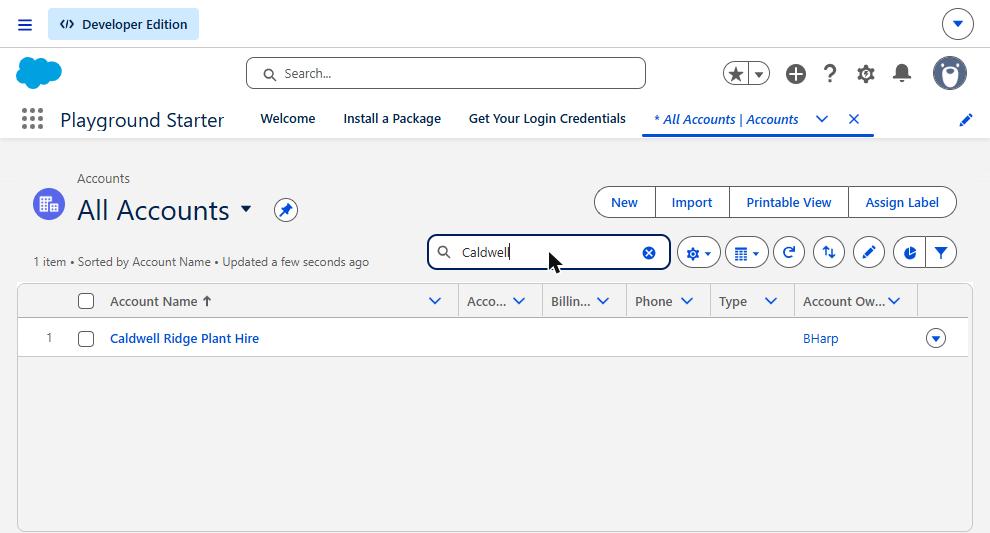
After the fault path handled the error, the account remains — with no opportunity attached. The same run without a fault path left nothing behind.
The middle row is the trap. Adding the fault connector made the error look handled while leaving a half-built customer record behind. Nobody was told. Nothing in the UI suggested a problem. Run that fifty times and you have fifty accounts with no deal attached and no record of why.
So the sequence matters:
- Screen flows: put a Roll Back Records element on the fault path, before the message screen. Flows pause at screens, and users who hit an error close the window — anything after the screen may never run.
- Record-triggered flows: use the Custom Error element, which shows your message, rolls back the transaction, and blocks the triggering change.
- Other flow types: there is no fault-path rollback mechanism. Decide per element whether partial completion is acceptable.
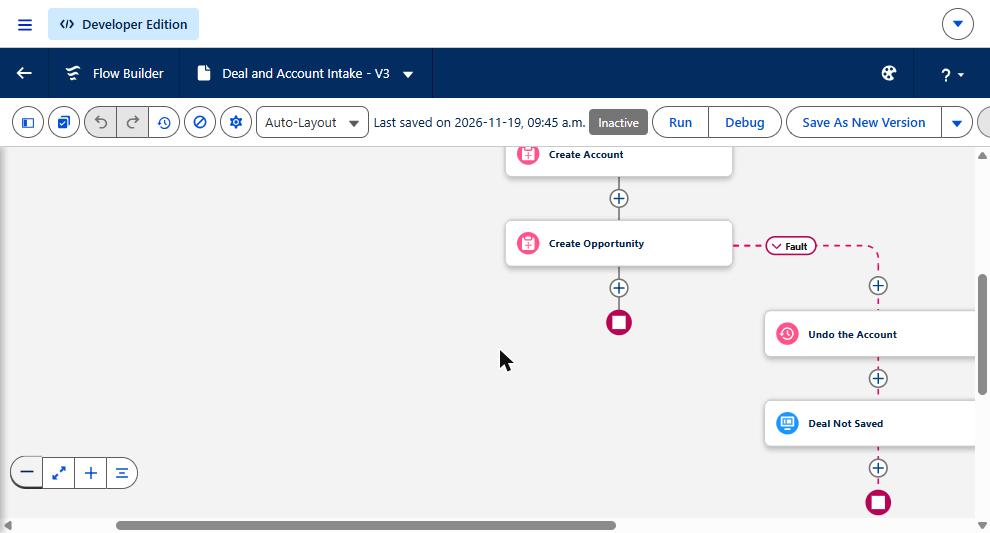
The safe version: Roll Back Records runs before the message screen, so the account is undone.
One more boundary: Roll Back Records only undoes the current transaction, and a screen element ends one transaction and starts another. Work done before an earlier screen is already committed and cannot be rolled back later.
A fault path alone buys you a nicer message. Nothing else.
How to Test Whether It's Actually Fixed
A clean debug run proves one path worked once. Before you call it done:
- Test with valid input, and with the invalid input that caused the original failure
- Test as a user with the real profile, not only as an administrator
- Test with any related automation active
- Test more than one record where the process handles batches
- Confirm the error notification actually arrived, and at the right person
- Check record state afterwards — not just whether the screen looked right
- Confirm the retry behaves sensibly when someone tries again
Salesforce also supports negative assertions in flow tests: create a test scenario, set an assertion on a Create, Update, Delete or Action element, and choose the operator Has Error. That turns "the fault path works" into something that keeps being verified.
And treat test context carefully. Salesforce documents a case where debugging a flow with an input left blank — one the real system normally supplies — produced the unhandled fault, when nothing was wrong with the flow at all.
When a Broken Flow Becomes a Business Problem
A single failure is a ticket. A pattern is a process problem.
A rep cannot advance a deal, so the pipeline is wrong at the exact moment someone is reporting on it. A lead qualification step fails, and the lead sits unassigned while response-time targets quietly slip. A case escalation never creates its follow-up task. An order process completes halfway. Each is small. Together they teach the team that Salesforce is unreliable, and people start keeping their real numbers in a spreadsheet.
The visible failures are the manageable ones. The expensive version is the process that appears to succeed while doing only part of its job — exactly what a fault path without a rollback produces. Nobody raises a ticket for a record that saved fine. You find it at quarter end, in a report that does not reconcile.
That is the argument for monitoring failures, reconciling record state, and having a named owner for recovery — not just for better error messages.
Why the Same Problems Keep Coming Back
The recurring causes are rarely technical:
- Requirements change; old automation keeps its original assumptions
- New flows are built without mapping what already runs on the object
- Validation rules and permissions change independently of the flows that depend on them
- Error notifications go to whoever last edited the flow, and are never read
- Fault paths get added without deciding what should happen to the data
- There is no regression test when something adjacent changes
- Nobody owns the automation
Salesforce's own architecture guidance frames the underlying pressure as automation density: how many automations run on one object, how far the downstream effects cascade, and how many records move per transaction. As density rises, so does the chance of hitting a transactional limit. Its recommendation is to commit to a single primary entry point per object rather than splitting automation across mechanisms — and, notably, it recommends Flow for low-density objects. This is not an argument for rewriting flows in Apex.
Not every error is technical debt. But errors that keep returning after each fix usually are.
Fix One Flow, or Look at the Whole Picture?
A targeted repair is the right call when the failure has one clear cause, the dependencies are few, the fix can be tested directly, and you can verify which records were affected.
A broader review earns its cost when several flows fail repeatedly, errors return after unrelated configuration changes, multiple teams depend on the affected processes, integrations produce inconsistent results, or troubleshooting any single failure means understanding a long chain of automation — and especially when nobody is clearly responsible for noticing and recovering failed processes.
That review is not open-ended. It inventories the automations that matter, maps their dependencies, reviews recurring errors, identifies missing or unsafe fault handling, prioritises by business impact, and leaves behind a way to test and monitor what was fixed.
Make Salesforce Automation Dependable Again
Are recurring Salesforce Flow errors interrupting your team's work?
Logic Conduit helps businesses investigate failing Salesforce automations, identify the underlying causes and develop practical remediation plans. Whether the answer is a targeted Flow correction or a broader automation review, the objective is straightforward: make Salesforce processes more dependable and easier to maintain.