Salesforce Lead Conversion: Why Sellers Repeat Discovery & How to Save Sales Time
A business development rep qualifies a lead, learns what the buyer is trying to fix and agrees a next step. Salesforce lead conversion completes without an error. Then the account executive opens the new opportunity and finds a company name, a close date and little else. To move forward, they call the buyer and ask questions the buyer has already answered.
That repeat discovery takes seller time, can push back the follow-up the buyer agreed to, and gives the buyer a reason to wonder whether anyone was listening. Sellers notice it too: in one sales community discussion about who should run discovery, an account executive pointed out that buyers don't enjoy being put through discovery twice.
The conversion usually does exactly what it was configured to do. The question for a sales manager or RevOps leader is different: did the details the next seller needs arrive where that seller will look?
What happens during Salesforce lead conversion?
In Salesforce, "lead conversion" is a record action, not a win or a lead-to-customer conversion rate. According to Salesforce's Convert Qualified Leads documentation, converting a lead creates a contact and relates it to a new or existing account. Creating an opportunity at the same time is optional.
In Lightning Experience, the steps are:
- Open the lead and click Convert.
- Create a new account or choose an existing one.
- Create a new contact or choose an existing one.
- Create a new opportunity, choose an existing one, or select Don't create an opportunity upon conversion.
- Confirm the record owner and converted status, then click Convert.
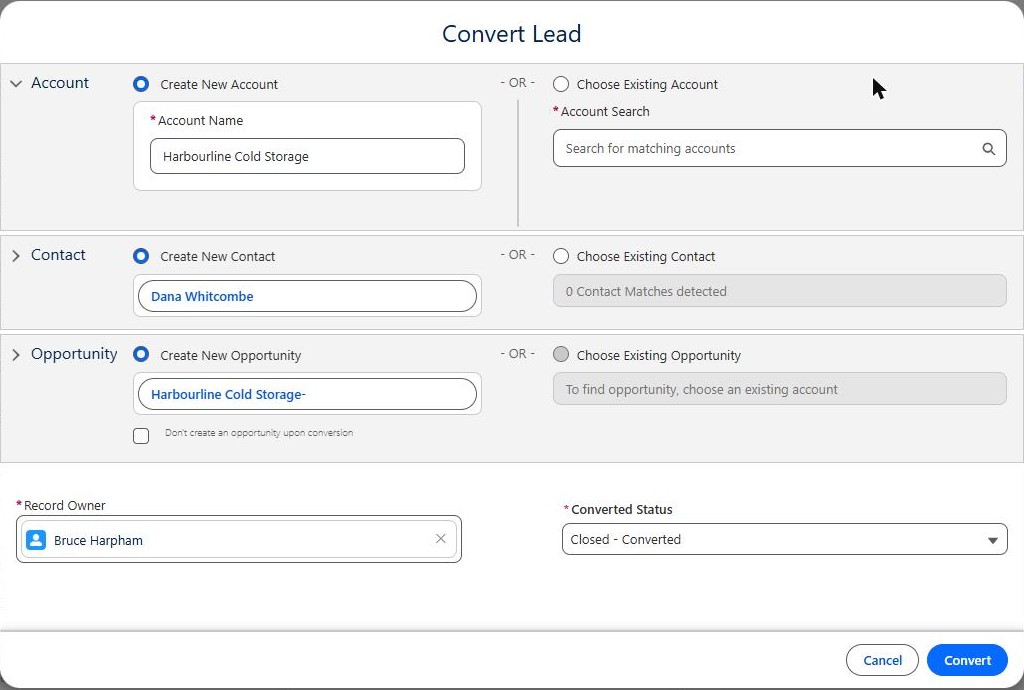
The Convert Lead dialog in a Developer Edition org, using a fictional lead.
Two documented details matter for planning. A conversion can't be reversed. And after conversion, the lead becomes read-only and is hidden from most users unless an administrator grants the View and Edit Converted Leads permission, although converted leads still appear in lead reports. In practice, sellers work from the account, contact and opportunity. Information that stays only on the lead is hard for them to use.
Decide what the next seller needs
Before anyone changes configuration, agree on a short list of details the receiving seller should be able to find without asking again. For a cold-chain monitoring vendor, for example, that list might be:
- The customer's need: temperature problems are found too late at three warehouses.
- The agreed next action and its timing: a site walkthrough with the operations team on November 4, followed by pricing.
Then decide which record each detail belongs to:
- Company facts such as industry or number of locations usually belong on the account.
- Person facts such as role or communication preferences usually belong on the contact.
- Deal facts such as this buyer's current need, the agreed next step and timing usually belong on the opportunity.
Keep the list short. Each item you add is something a rep must capture before converting, and a required field nobody can fill in well just becomes another field people type around.
Check where those details actually go
Salesforce maps standard lead fields to standard account, contact and opportunity fields automatically. Custom lead fields are different. Your administrator chooses how each one maps under Object Manager > Lead > Fields & Relationships > Map Lead Fields, which has separate Account, Contact and Opportunity tabs. A custom lead field that isn't mapped stays on the converted lead.
Salesforce's mapping guidelines also limit what can be mapped. Many field types must map to the same type, and a target field must be at least as long as the source. Each target can have only one source field, and a picklist target must be unrestricted.
A simple table keeps the review concrete:
| Detail sellers need | Lead field | Intended destination | Observed after a test conversion | Owner |
|---|---|---|---|---|
| Customer need | Primary Pain Point | Opportunity: Primary Pain Point | Populated | RevOps |
| Agreed next step and timing | Agreed Next Step | Opportunity: Agreed Next Step | Blank until mapped | RevOps |
| Number of locations | Number Of Locations | Account (to be decided) | Not tested | Sales manager |
The "Observed" column is the important one. A mapping screen shows intent. A test conversion shows what a seller will actually see.
A small test: one missing mapping
We ran this check in a Salesforce Developer Edition org with two fictional prospects of a cold-chain monitoring vendor. The org already mapped a custom Primary Pain Point field to the opportunity. For the test, we added a new custom text field, Agreed Next Step, to both Lead and Opportunity and did not map it.
The first fictional lead, Dana Whitcombe at Harbourline Cold Storage, recorded the agreed next step on the lead.
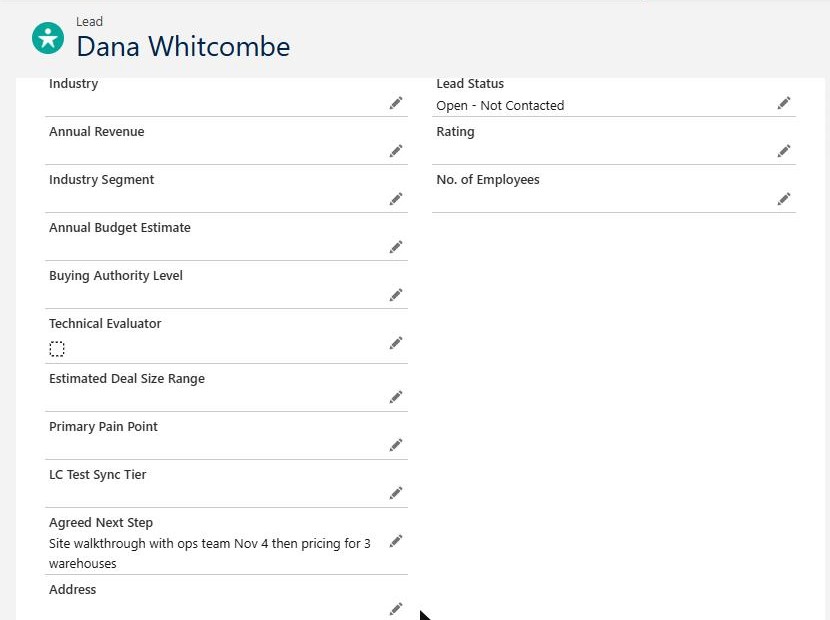
The fictional lead before conversion. The Agreed Next Step is on the lead.
After conversion, the opportunity showed the mapped pain point but no agreed next step.
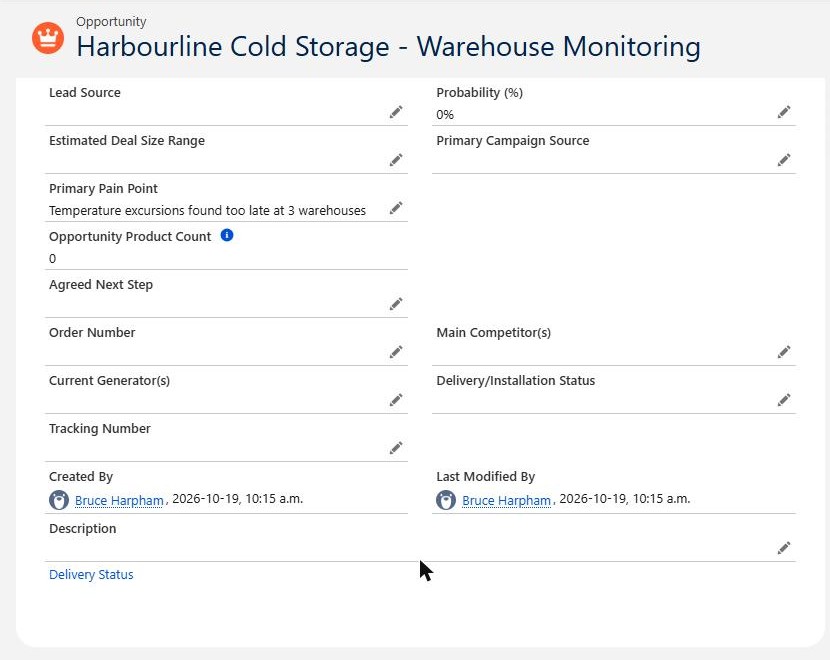
The resulting opportunity: Primary Pain Point arrived through its existing mapping, while the unmapped Agreed Next Step is blank.
We then mapped the lead field to the matching opportunity field.
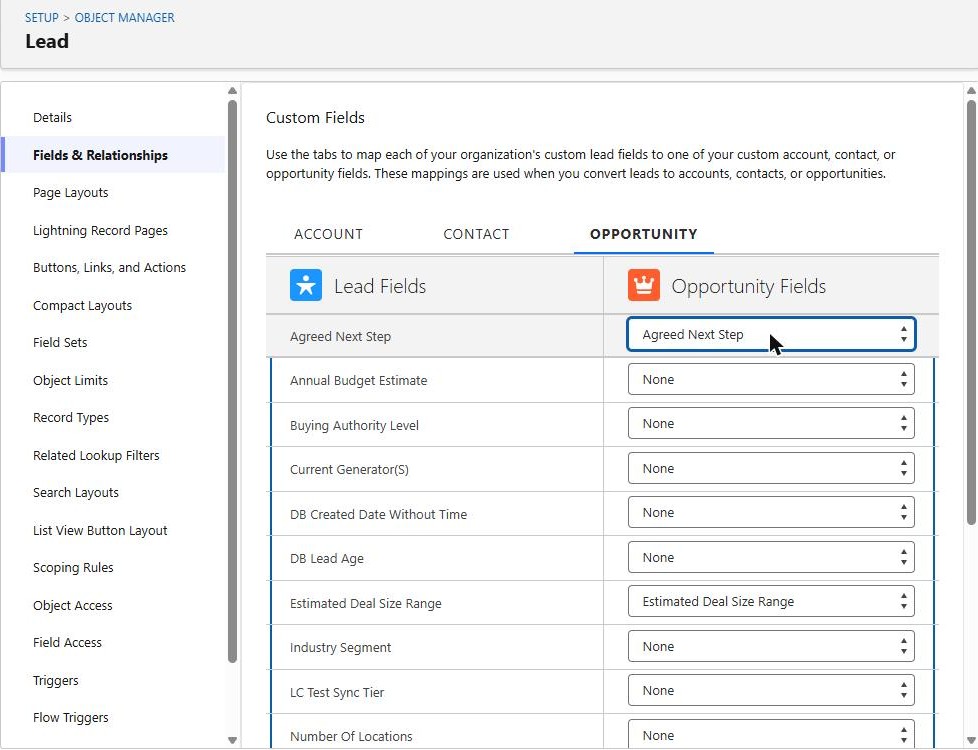
The mapping change: Lead Agreed Next Step to Opportunity Agreed Next Step.
A second fictional lead, Marcus Oyelaran at Tidewater Fresh Produce, was converted after the change. This time, the next step reached the opportunity.
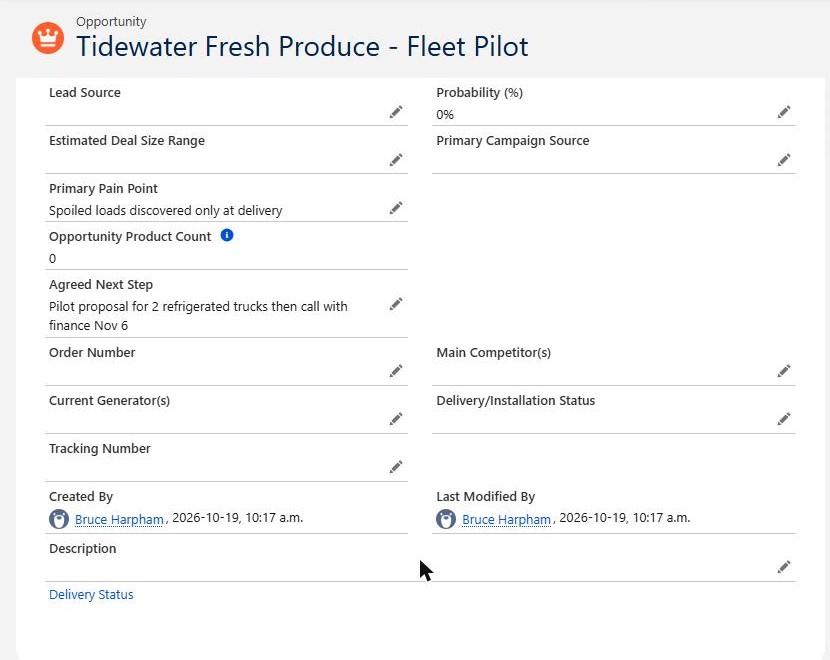
A fresh conversion after the mapping change: both details are on the opportunity.
The mapping did not repair the earlier record. When we reopened the Harbourline opportunity, Agreed Next Step was still blank.
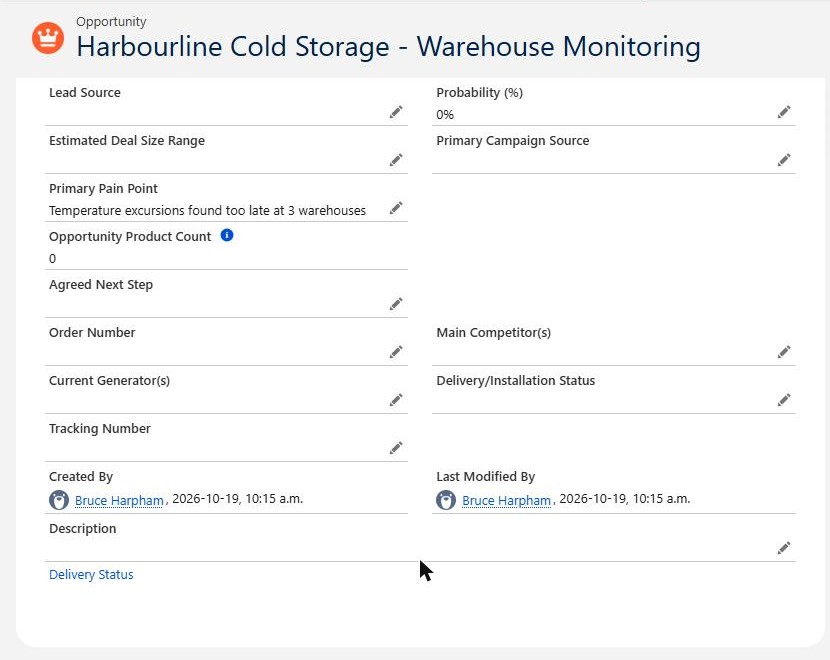
The opportunity converted before the change was unchanged.
That limitation affects the size of the fix. Correcting the mapping protects future conversions. Opportunities already converted need a separate decision, such as a short report of recent conversions and a manual update or a planned data load.
Check the paths that behave differently
One successful conversion doesn't cover every route your team uses. The considerations for converting leads point to several paths worth checking separately.
Existing accounts and contacts. When a rep converts into an existing account or contact, Salesforce adds lead values only to empty fields and doesn't overwrite existing values. That protects good data, but it also means a newer detail may not appear on the record. Check a conversion into an existing record twice: once with the destination field blank and once with it already filled in. Your duplicate management settings also affect which existing records reps choose.
Conversion without an opportunity. If reps can choose not to create an opportunity, details mapped only to the opportunity have nowhere to land in that conversion. Decide where deal details should live in that case.
Validation rules and automation. Universally required fields and validation rules are enforced during conversion, and triggers fire. In our first attempt, an existing opportunity validation rule stopped the conversion because Primary Pain Point was blank.
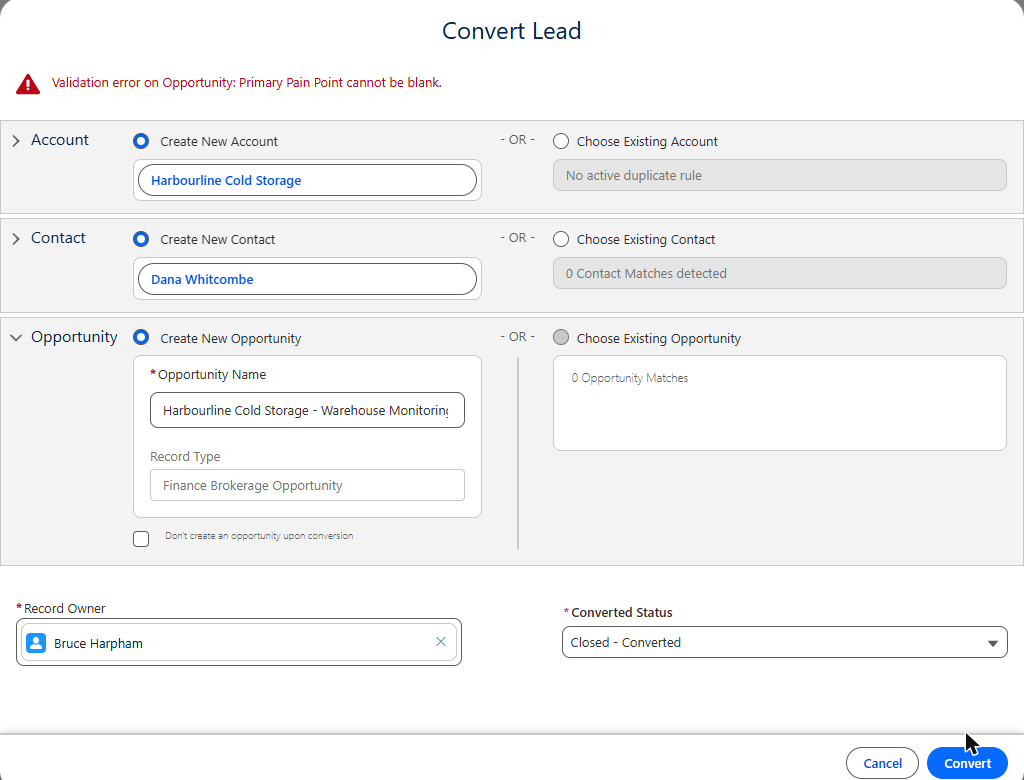
An existing validation rule in the test org blocked the first conversion attempt until the lead's Primary Pain Point was filled in.
A rule like this can protect the handoff, but only when the field it checks is mapped and reps can supply the value before converting.
Record types and starting values. Records created during conversion receive the converting user's default record type. In our example, both new opportunities opened at a Closed Lost stage because of existing settings in the org. If converted opportunities don't start where sellers expect, they can disappear from pipeline views even when the details arrive.
Permissions and visibility. Converting requires create and edit access to leads, accounts and contacts, plus the Convert Leads permission. Also confirm that the receiving seller can see each destination field on the page they actually use.
Decide whether mapping is enough
A missing mapping is the easiest problem to fix. Before changing fields, check whether the real issue is one of these:
- The information is captured in the wrong place. A next step written in a general description field or an activity note may convert, but sellers might not look there. Salesforce attaches the lead's files and notes to the converted records, so the detail may exist without being visible where the seller works.
- Nobody owns the field. If it isn't clear who records the agreed next step and when, mapping only moves a blank value faster.
- The handoff needs more design. A short summary of several qualification calls may not fit a single field. A handoff meeting, a template or a different qualification process may be the better answer.
Ownership before conversion matters as well. Lead assignment rules decide who works the lead. Once the opportunity exists, stage requirements can check that important details stay current.
Review whether the handoff improved
After a change, check the results with the people who receive the handoff. Useful signals include:
- Recently converted opportunities where an agreed detail is blank.
- Cases where a seller had to contact the buyer again to repeat discovery.
- Time spent reconstructing context from emails, notes or the converted lead.
- Whether the agreed follow-up happened on the date the buyer was promised.
These signals show whether the handoff carries the information you agreed on. They won't prove a revenue change by themselves, but they give sales and operations a shared, factual way to decide what to adjust next.
Talk through one conversion path
Does your team repeat discovery after converting a lead? Contact Logic Conduit with one example of the missing information and where your sellers expected to find it. We can review that conversion path together, including the details sellers need, the current mappings, the destination records and a simple acceptance check. The lead conversion handoff checklist can help you gather the example first.