Salesforce Opportunity Splits: Check That Sales Reports Show the Right Credit
A sales manager opens a rep's pipeline report before a coaching conversation. One large deal is shared three ways, and the rep is meant to receive 25% of the credit, yet the report shows the full opportunity amount beside her name. Nothing looks broken. The figure is real; it just answers a different question from the one the manager is asking.
That pattern appears in a 2021 Trailblazer Community question, and it captures the risk well. When a team shares deals, the allocation can be recorded correctly in Salesforce while the report used for coaching, pipeline coverage or attainment still shows whole-deal value. Managers then reconcile by hand, sellers question their numbers and conversations about credit become harder than they need to be.
This article explains what Salesforce opportunity splits do, then shows how to check one shared deal from the saved allocation through to the report your managers actually use.
What are Salesforce opportunity splits?
Opportunity splits divide credit for an opportunity among members of its opportunity team. Three ideas are easy to blur together, and they answer different questions:
- Opportunity owner: who is accountable for the record.
- Opportunity team: who is working on the deal, and in what role.
- Split: how much sales credit each person receives, as a percentage and an amount.
Adding someone to the team does not, on its own, give them credit. In our demonstration, adding a second seller to the team left the owner holding 100% of the revenue split until the split itself was edited.
Salesforce's Sell as a Team and Split the Credit unit describes two default split types based on the Opportunity Amount field:
| Revenue split | Overlay split | |
|---|---|---|
| Purpose | Divide credit for the deal's value | Recognize supporting effort, such as a specialist or sales engineer |
| Percentage total | Must total 100% | Can exceed 100% |
| How to read it | Seller credit adds back to the deal amount | Additional credit; it does not increase the deal's value |
Split amounts are sales credit. They are not commission payouts, recognized revenue or extra bookings. If a commission plan uses them, that calculation still happens somewhere else and should be checked separately. Product-level splits are also available in Lightning Experience for teams that need credit by line item; that is a separate design decision and is not covered here.
Why a shared deal can show the wrong credit in a sales report
Most opportunity reports show one row per opportunity and use Opportunity Amount. That is the right measure for company pipeline. It is the wrong measure for an individual's credit on a shared deal.
The accepted answer in the community thread pointed in the right direction: use a split report type and the split's own Amount field, not Opportunity Amount. A split report returns one row per split, so a shared deal appears once for each credited person, each with its own percentage and split amount.
The subtle part is that a split report also carries the opportunity's total. If someone adds up the wrong amount column, or builds a dashboard on it, the shared deal is counted in full for every person on it. The report runs, the numbers look plausible and the total is wrong.
Agree the credit policy before configuring Salesforce
Salesforce can record an allocation. It cannot decide what allocation is fair. Before anyone enables or changes splits, settle a short policy with sales leadership and whoever administers compensation:
- Who qualifies for revenue credit, and which roles receive overlay credit instead?
- Who sets and edits splits, and when are they reviewed (for example, before a deal is committed, or at close)?
- How are disagreements and exceptions handled, and where is the decision recorded?
- Which report or dashboard is the agreed source for individual credit?
These are business decisions, not product features. Salesforce does enforce some boundaries: its guidelines and considerations say users need Edit access to the opportunity and must be the owner or above the owner in the role hierarchy to edit splits. Any review step beyond that is something your team designs.
If the review point relates to deal stages, our article on opportunity stage requirements covers how to make stage expectations explicit.
Verify one deal from allocation through reporting
A useful acceptance test follows one real-looking deal all the way through. We used a Salesforce Developer Edition org with fictional records on 20 October 2026.
The scenario: Cedar Ridge Foods is evaluating a warehouse systems rollout worth $100,000. The owner led the deal; a second seller managed the account relationship. The agreed policy gives the owner 60% of revenue credit and the second seller 40%. A separate, ordinary $25,000 deal for Lakeshore Dental Group belongs entirely to the owner.
Before touching Salesforce, write down what the report should show:
| Seller | Cedar Ridge Foods | Lakeshore Dental Group | Expected credit |
|---|---|---|---|
| Owner | $60,000 (60%) | $25,000 (100%) | $85,000 |
| Second seller | $40,000 (40%) | — | $40,000 |
| Total | $100,000 | $25,000 | $125,000 |
The total credit should equal the combined value of the two deals. If it does not, something is being double-counted or left out.
Our first save attempt deliberately left the owner at 100% while giving the second seller 40%. Salesforce refused it.
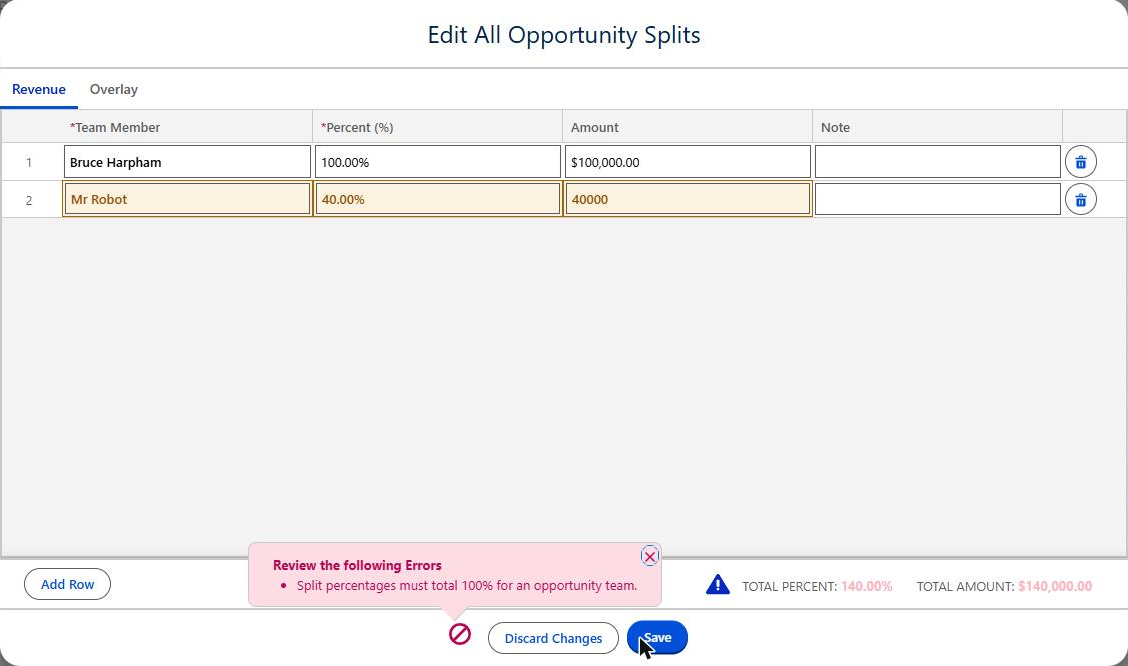
Salesforce blocked a 140% revenue split on the fictional $100,000 Cedar Ridge Foods deal. The demo-org user names are shown as they exist in the test environment.
After the owner's share was changed to 60%, the split saved with matching amounts.
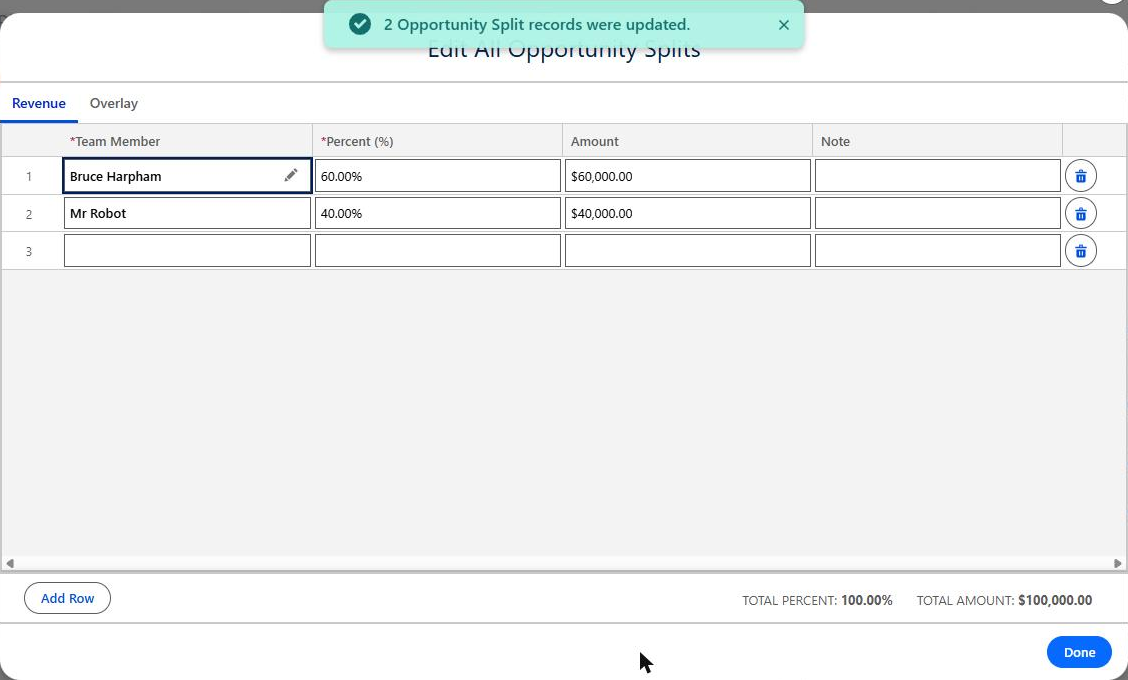
The saved revenue split: $60,000 and $40,000, reconciling to the $100,000 opportunity amount.
That validation is helpful, but it only proves the allocation adds up. It does not prove a manager's report uses it.
Check that the report remains complete and accurate
We then ran a report using the standard Split Opportunities report type, filtered to the two fictional accounts and grouped by the person receiving each split.
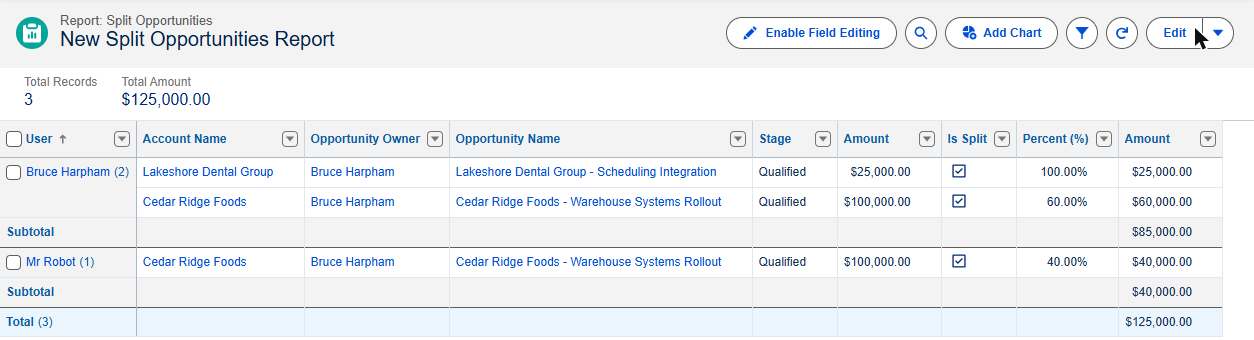
The Split Opportunities report. The first Amount column is the opportunity's total; the last Amount column is each person's split credit. The demo-org user names are shown as they exist in the test environment.
The split amounts matched the expected credit exactly: $85,000 for the owner, $40,000 for the second seller and $125,000 in total. The ordinary deal appeared alongside the shared one without special handling, because Salesforce had already given its owner a 100% revenue split.
Look at the first Amount column, though. It holds the opportunity's total, so the $100,000 deal appears on two rows. Summing that column by person would give the second seller $100,000 of "credit" and inflate the total to $225,000. That is the reporting trap in one picture: the right data is present, and a single wrong column choice produces a confident but misleading result.
When you review your own report, check four things:
- The report type returns one row per split, not one per opportunity.
- The amount field summed for individuals is the split amount.
- The filters include ordinary deals as well as shared ones, and the intended split type. If your org uses overlay splits, report them separately so overlay credit is not added to revenue credit.
- The total reconciles to the deals in scope, as in the table above.
If forecasts or quotas draw on split credit, also check how those downstream views are configured; our article on Salesforce forecasting covers questions to ask before trusting the quarterly number.
Test changes and decide whether standard splits are enough
A deal rarely stays still. Before relying on splits, agree how your team will test the changes that happen in real life:
- Amount changes: confirm the split amounts follow the new opportunity amount while percentages stay as agreed.
- Ownership changes: Salesforce documents that when an opportunity with overlay splits changes owner without keeping the team, the new owner takes the previous owner's split percentage. Test the option your team actually uses.
- Permissions: confirm only the people in your policy can edit splits.
- Downstream use: confirm dashboards, forecasts and any commission system read the field you expect.
We did not test amount changes, ownership changes, overlay splits or product splits in this demonstration; treat those items as a checklist, not completed results.
Enabling splits is also an organization-wide change. Salesforce's enablement guidance requires Team Selling and the Modify All Data permission, adds the owner to existing opportunities with 100% credit, uses additional data storage and lists preparation steps to complete first, such as finishing mass transfers and resolving inactive currencies. In our small test org it finished within a few minutes; a production org with many records can take much longer, and validation rules, triggers and workflows for team records are paused while it runs. Plan it like a release, not a demonstration.
Standard splits suit many teams that need a clear, reportable division of credit. They may not be enough when credit depends on territory rules, multi-level manager attainment or a compensation plan with its own logic. In those cases, map the policy first, then decide whether splits, a separate allocation model or a compensation tool should own the calculation.
A small test is a good place to start
Does a shared deal show one amount in Salesforce and a different amount in your rep-credit report? Contact Logic Conduit with one example deal and the report your managers use. We can review the allocation, the report's fields and filters, and where reconciliation is still needed, so you can decide whether the fix is a report change, a configuration change or a policy conversation.
A short split-credit report check summarizes these steps for your own review.
About the demonstration: Salesforce Developer Edition, tested 20 October 2026 as a System Administrator using Lightning Experience. Team Selling and Opportunity Splits were enabled with the default revenue and overlay types. All company and deal records are fictional. Tested: adding a team member, an invalid 140% revenue split, a valid 60/40 split and a Split Opportunities report including an ordinary deal. Not tested: amount changes, ownership changes, overlay and product splits, non-administrator permissions and forecasting.