Salesforce Data Storage Limits: What Filled Your Org, and Should You Buy More?
A Salesforce storage warning lands in your inbox with a quote for more space. Marketing uploaded conference photos last month. Could those photos explain a data storage warning? A photo uploaded to Salesforce Files uses file storage. The attendee Leads and follow-up Tasks use data storage. In Salesforce, open Setup → Quick Find → Storage Usage and check which allowance is running low before you approve the quote. Salesforce storage allocations and monitoring
What are Salesforce’s data storage limits by edition?
Professional, Enterprise, Performance, and Unlimited editions start with 10 GB of data storage per org, with additional capacity based on qualifying user licenses. Developer Edition has a 5 MB data allowance in Salesforce’s general allocation table. Files have their own allowance, measured separately.
| Salesforce edition | Minimum data per org | Typical additional data per qualifying user | Base file allocation per org |
|---|---|---|---|
| Developer | 5 MB | No per-user amount listed | 20 MB |
| Essentials / Starter | 10 GB | No per-user amount listed in the general table | 1 GB |
| Professional / Enterprise | 10 GB | 20 MB | 10 GB |
| Performance / Unlimited | 10 GB | 120 MB for standard licenses | 10 GB |
License exceptions apply, including Lightning Platform Starter licenses in Performance and Unlimited and certain Unlimited licenses. Salesforce also publishes separate file allocations and lists a 10 GB data minimum for Free, Starter, and Pro Suites. For a purchase, use the allowance shown in Storage Usage, then reconcile it to your provisioned licenses and order terms. General allocations · Salesforce Files allocations · Suite allocations
Read the two percentages before looking for a culprit
The summary tells you how much of the org’s allowance you’ve used. The breakdown tells you which record types or file categories occupy the space already in use. If Photos makes up 100% of the file breakdown, Photos may be the only file category with any usage. The org could still have ample file capacity. Check the summary first, then look at the largest rows in the matching breakdown. Storage Usage shows the current reading, so date and retain it if you need to explain growth later. Salesforce Storage Usage guide
In a Salesforce Developer Edition test org, Storage Usage showed 282 KB of 5.0 MB used for data and 21 KB of 20.0 MB used for files. Salesforce displayed that file usage as 0% after rounding. The separate Leads row showed zero records.

Storage Usage in a Salesforce test org. Data and files have separate allowances. Vertical gutters mark omitted space between columns.
Photos used 13 KB, which Salesforce showed as 61% of the file storage in use. Compare that with 0% of the org’s file allowance shown in the summary. Both figures describe the same org at the same time.

The file breakdown shows shares of the space in use. Photos accounted for 61% of that space. Vertical gutters mark omitted space between columns.
One conference, two storage meters
We created fictional conference attendee data to illustrate this article, then added 200 Leads in one transaction in the same Salesforce Developer Edition test org. The completed import added 400 KB to data storage, taking the total from 282 KB (6%) to 682 KB (13%) of the 5.0 MB allowance. File storage stayed at 21 KB. The Leads row rose from zero to 200 records and accounted for 59% of data storage in use.
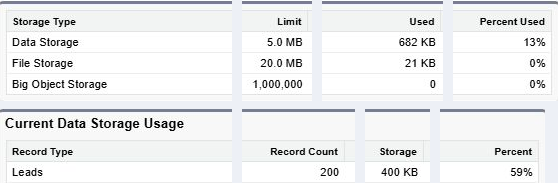
Storage Usage after the 200-Lead insert. In the breakdown, 59% is the Leads share of data in use. Gutters mark omitted space between columns.
| Storage Usage reading | Before, 2:17 p.m. ET | After, 2:55 p.m. ET |
|---|---|---|
| Data storage, 5.0 MB allowance | 282 KB (6%) | 682 KB (13%) |
| File storage, 20.0 MB allowance | 21 KB (0% displayed) | 21 KB (0% displayed) |
| Lead count and storage | 0 Leads, 0 B | 200 Leads, 400 KB |
Both readings are from November 17, 2026. Salesforce recorded the transaction at 2:52 p.m. ET. The updated numbers were visible when we checked at 2:55 p.m. ET. Salesforce recalculates both storage meters asynchronously.
Salesforce estimates about 2 KB per Lead, so the Lead records alone would add roughly 400 KB of data storage for a batch of 200. Photos draw on the file allowance based on the size of the files uploaded. Follow-up Tasks and Campaign Members can add further data usage. If every attendee generates a call Task and a Campaign Member record, you have three record types to track. Salesforce record-size estimates · Storage calculation timing
Three storage problems worth taking to the budget meeting
1. Email capture changes and storage jumps
In July 2026, a Salesforce user reported a 20 GB increase in EmailMessage storage in 24 hours after an Einstein Activity Capture change. Ask your admin to put the settings change, any backfill, and the first storage jump on the same timeline. An old-mail backfill and a steady increase from new messages call for different capacity decisions.
There’s a reason the rollout date matters. In Spring ’19, Salesforce raised the data minimum from 1 GB to 10 GB for several editions, including Professional and Enterprise. Salesforce’s September 2026 guidance describes a different change. With Sync Email as Salesforce Activity enabled, newly captured emails create a Task and an EmailMessage that count toward core data storage. The legacy mode stored emails outside the core org. Salesforce says migrated EmailMessage records are exempt from the quota, while their accompanying Tasks count. This sync excludes attachments, so a case-file problem needs its own investigation. Allocation history · Einstein Activity Capture storage guidance
2. Support still needs the files you’d like to archive
A March 2026 Salesforce community post reported 67 GB of data against a 65.4 GB allowance and 823.9 GB of files against a 789.3 GB allowance. The author also needed to preserve access to attachments associated with cases. Ask a support rep to reopen an older case in a trial archive and retrieve the original attachment using their normal permissions. Check what the rep can find by searching and whether the reports the service team depends on still answer the same questions. A large file count tells you where to look. A retrieval test tells you whether the business can live with moving it.
3. An integration keeps generating records that nobody reviews
One HubSpot user reported that Tasks accounted for 87% of the org’s data storage after nearly three million Tasks had synced, mostly from marketing emails. The author said they had been close to buying more capacity. Ask Sales which activities it relies on for follow-up or reporting. Have the integration owner test a narrower sync against those uses and track whether weekly growth slows. The HubSpot–Salesforce integration checklist covers how to inspect the activity sync.
What should you approve?
| Decision | When it makes sense | What to ask for before approving |
|---|---|---|
| Buy capacity | Current records are needed and available space may run out before a fix is ready. | A dated headroom estimate, the right storage category, and a named owner for investigating ongoing growth. |
| Reduce what you capture | A sync or automation creates records with limited operational value. | A list of the reports, follow-ups, and automations that depend on the records, plus a test of the narrower configuration. |
| Archive older records or files | People need occasional historical access and can work with a different retrieval process. | A test using ordinary user permissions, a check of linked attachments and reports, and a recovery plan. |
| Delete eligible material | An approved retention policy permits removal, and the business owner has signed off. | A scoped sample, confirmed retention and hold requirements, and evidence that recovery works. |
If a connected process drives growth, give its owner a specific workflow to investigate. A bounded Salesforce Integration Sprint can focus on one such process. When the problem keeps returning because nobody owns the monitoring, assign someone to record the reading, explain large changes, and bring a decision forward while there’s time to act.
Treat 100% as a planning boundary. Salesforce says an active production org can continue operating at 100%, and the point of degradation above that level depends on the implementation. Separately, Salesforce documents that an over-limit refreshed Full Sandbox can reject new records. If a release depends on loading test records, check that sandbox before committing to the schedule. Salesforce guidance on exceeded storage limits
Keep Sales and Support working when Salesforce storage runs low
A storage warning can turn into an urgent budget decision. Buying more capacity may keep an upcoming data load on schedule, but it can also leave you paying for records nobody uses. Rushing a cleanup can make it harder for sales reps to see account history or for support staff to find an old case attachment. Before deciding, identify which work is at risk and how soon you need to act.
If a Salesforce storage warning or quote has landed on your desk, talk to Logic Conduit. We’ll help you establish what’s filling the org, which records your teams need to keep accessible, and whether to buy capacity, change what Salesforce captures, or archive older records. Bring the warning or quote and the date you need to make a decision.